
Some information deserves a glance before you open the full app. A task backlog, a daily total, or a compact status page can help you decide what needs attention. Flow-Like’s native Data Chart and App Page widgets put selected app content on supported iOS and macOS system surfaces.
A widget keeps a cached view close at hand, with its update time providing context. Use it to spot a growing queue or decide which app to open next. Open the full app when a decision depends on the latest data or needs an interactive form.
Build a small view of a useful question
Open Settings → Native widgets on the device where you want to use the widget. Choose Data chart, give the configuration a name, and select its app. A chart can read a table, an ontology object type, or a saved query.
For a task backlog, begin with a count grouped by the status your team already uses. Configure the measure, grouping, and filters before choosing the visual treatment. A single metric may be sufficient if the only question is how much work remains. A chart should earn its space by helping someone make a distinction.
Preview the result, choose a color, and save. Add Flow-Like’s Data Chart from the system widget gallery, then edit it to select the saved configuration. Small, medium, and large sizes are available for these configured widgets. Check the smallest size you intend to use; a label that fits in the setup preview may be less useful on the Home Screen.
Use an App Page when the context matters
An App Page widget can display a published page or one container within it. This is useful when a number needs supporting context, such as a status badge and a short explanation. Select the page’s internal path and provide query values as plain text; Flow-Like handles link encoding.
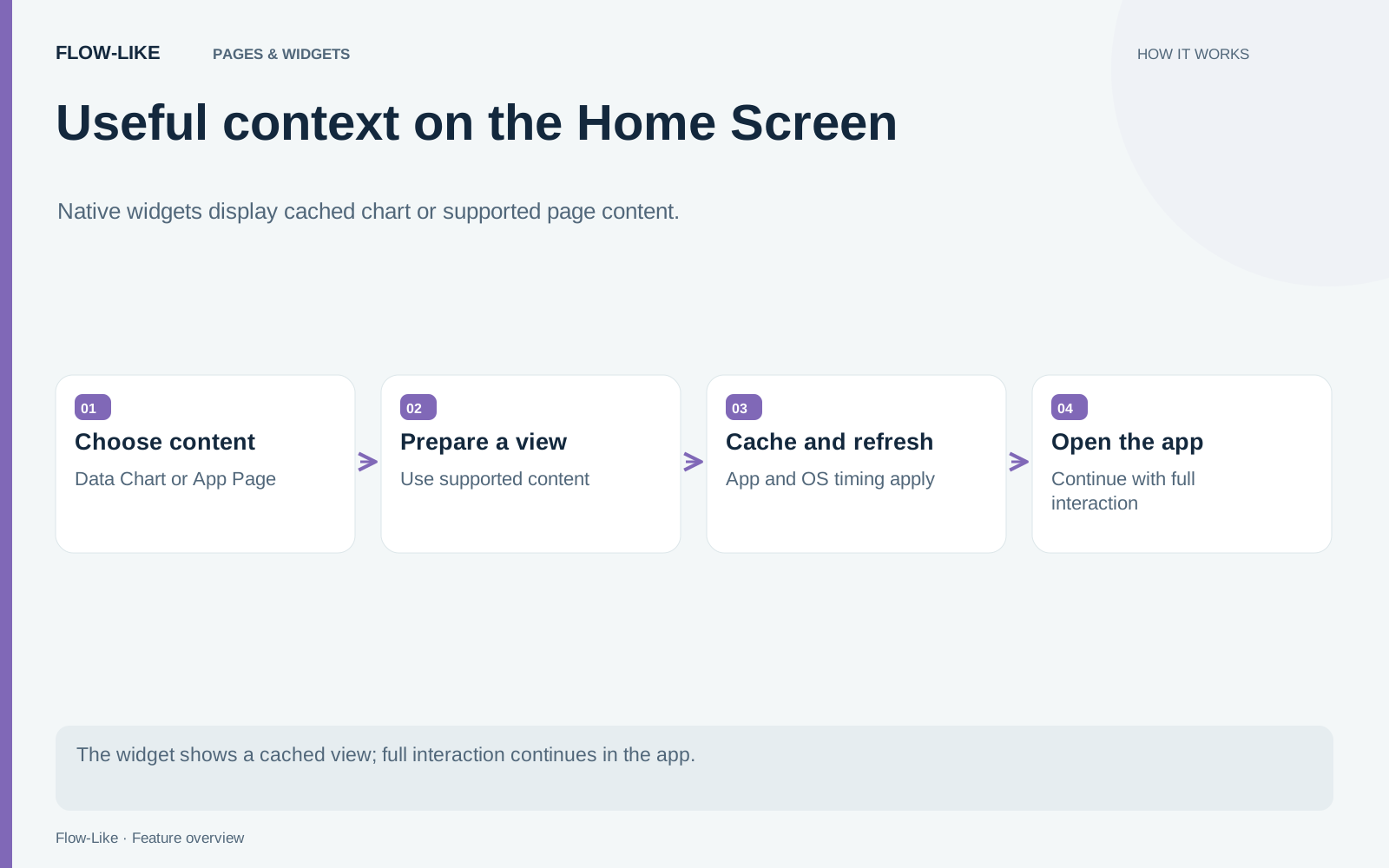
The native renderer supports a defined set of content, including text, images, icons, cards, badges, progress, compact tables, common charts, and basic layouts. The preview lists content that cannot appear. Buttons and links open the app, while inputs, camera, audio, and other interactive components require the full interface.
Keep that transition intentional. A compact status summary with a clear destination is easier to use than a miniature copy of a complex form. The widget can tell someone where to look; the app can collect the information needed to act.
Understand what refresh does
Data charts refresh at the configured interval while Flow-Like is open and visible. When the app is closed, the native widget uses the last cached content and its update time. The operating system decides when refreshed content appears on the Home Screen. A configured interval is not a promise of background workflow execution.
App Page refreshes do not run page lifecycle flows. Open the selected page to capture content populated by workflows or user input. If a page normally loads data when it opens, that behavior does not automatically become a recurring native-widget job.
The native widget guide describes chart point and series bounds, supported content, and cache expiry. Keep the Home Screen view focused on the summary that helps you decide what to open; the app can hold the detailed breakdown.
Keep the right workspace close at hand
Saved configurations and cached content belong to the selected account, Profile, and hub on that device. Switching accounts clears active native content. Open the intended workspace before choosing a saved configuration in the widget gallery.
Give configurations names that identify their workspace. “Support queue” may be clear on a personal device; someone using both a demonstration hub and a work hub benefits from a name that distinguishes the two. The saved configuration connects that name to its source app and selected view.
For the task queue, the Home Screen becomes the first step of a familiar routine. Read the count, glance at its update time, and open the app when the queue needs attention. The compact view saves the navigation needed to find that signal while leaving assignments, comments, and other detailed work in the full interface.
Get automation insights delivered
Sign up for our newsletter to receive the latest updates on Flow-Like, automation best practices, and industry insights. No spam — just valuable content.