

Before an automation can fill a form, it needs a browser connection that survives the ordinary events of a browsing session. Pages navigate. Frames reload. A dialog interrupts a click. The workflow ends, and the browser it launched should close with it.
Flow-Like’s browser core uses the Chrome DevTools Protocol, or CDP, to connect workflow nodes directly to Chrome and Edge. You can launch a browser without installing a separate WebDriver process. The same core tracks the browser, its pages, and the observations an operation depends on.
For a first workflow, open a test form, submit a synthetic request, read its confirmation, and close the browser. This small sequence exercises the lifecycle without creating a real order or changing an external account.
Start with an installed browser
Add Start Automation Session, then Open Browser. Choose Chrome or Edge. Flow-Like looks for a compatible installed browser; Chrome can also use a downloaded Chrome for Testing installation.
If no suitable browser is found, the run reports what is missing. Open Settings → Automation → Browser to install Chrome for Testing, then run the workflow again. Installation is a separate action: a workflow does not begin downloading a browser in the middle of execution.
Use a temporary profile for a repeatable form task. It separates the automation’s cookies and storage from your everyday browsing. If the workflow needs a persistent profile, choose a dedicated profile directory and treat its contents as account access material.
The browser launch code handles discovery, profiles, and process ownership. Host policy still applies. A machine that blocks browser execution or the required sandbox needs its configuration resolved before the workflow can run.
This browser path supports Chrome and Edge. Firefox, Safari, and remote WebDriver servers require a different setup and are rejected here. Older workflows can retain their Start WebDriver node, but it does not start a driver process.
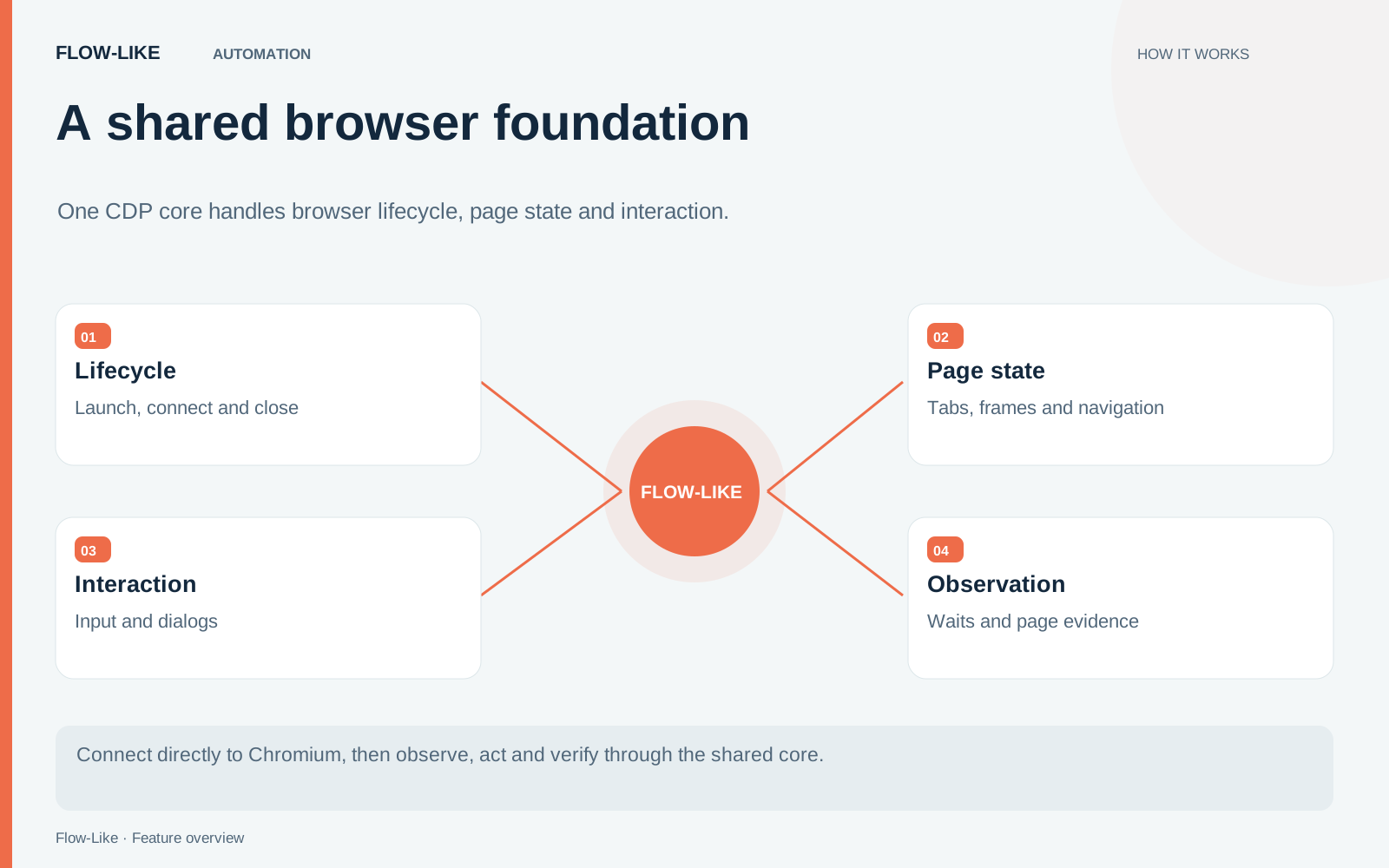
Observe the document you are about to use
Navigate to the test form and take a Browser Snapshot. Use the returned reference to identify the control you want to act on. Fill the synthetic values and submit once.
When navigation replaces the document, references to its old controls become stale. Take another snapshot before using the new page. The core checks the document associated with a reference instead of silently redirecting a stale target to another control with a similar name.
Frame state needs the same care. A control inside an embedded frame belongs to that frame’s document. If the frame navigates, the next action must resolve against its new state. The reference handling carries those boundaries into the operation.
Wait for a result tied to the request, such as its confirmation text or reference number. An idle page or a completed click does not establish that the server accepted the form.
Handle interruptions where they occur
A browser dialog can stop an otherwise valid operation. The core reports the dialog so the workflow can handle it explicitly. It does not automatically accept a confirmation that could authorize a consequential action.
Give each wait a deadline and a failure path. If the tab disappears, the connection closes, or the expected state cannot be observed, preserve enough context to explain the interruption.
A failure after submission needs particular care. The browser may have sent the click before the connection failed. Inspect the destination system or the resulting page before submitting again. Automatic recovery cannot turn an uncertain external action into proof that nothing happened.
For the test form, deliberately delay the confirmation once. Check that the workflow reports the timeout without sending the request a second time. This gives the recovery branch a concrete purpose.
Close what the workflow owns
End the launched session with Close Browser and Stop Automation Session, and include cleanup on failure paths. Flow-Like ties launched browser resources to the run so cancellation can also initiate cleanup.
Attaching to your own browser is a different ownership choice. Use Attach to Browser and the browser’s consent flow when working with your everyday Chrome. Keep the task in a new tab. Disconnecting that automation must leave the browser and unrelated tabs available to you.
The automation guide covers session setup. For a recurring task, prefer a dedicated launched session unless existing browser state is necessary. That makes the starting account, retained data, and cleanup behavior easier to reason about.
The form workflow now has a complete path: find a browser, observe a current target, submit with a result check, and release the resources it owns. Those same rules remain useful when the next workflow introduces more tabs, frames, or files.
Get automation insights delivered
Sign up for our newsletter to receive the latest updates on Flow-Like, automation best practices, and industry insights. No spam — just valuable content.