

One developer changes a condition in FlowScript while another adjusts the surrounding graph. That can be an efficient division of work, provided both can see where the other is working and understand what happens when their edits overlap.
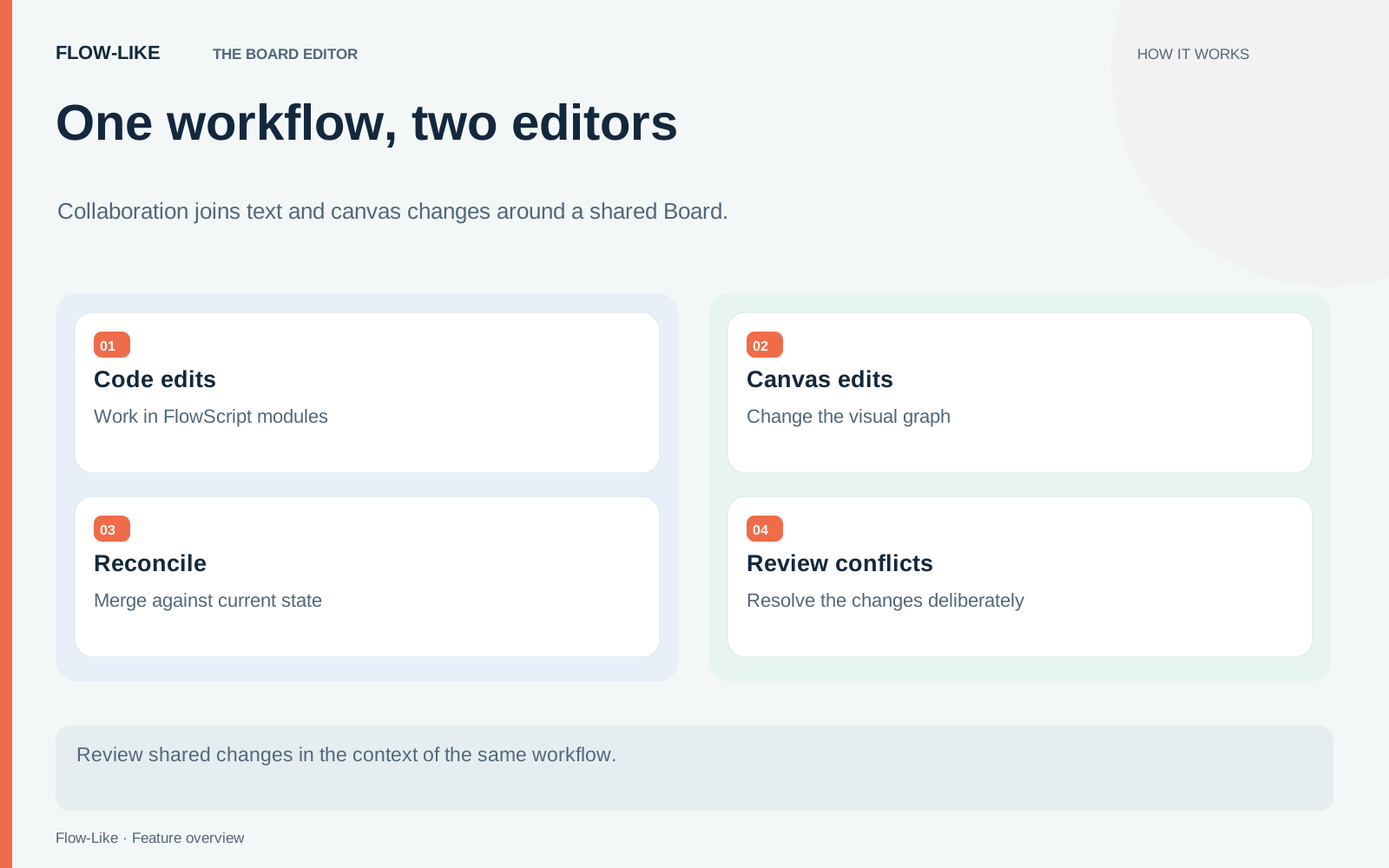
FlowScript and the canvas author the same Board. Applying text reconciles it into Board operations; a graph change can be rendered back into text. Collaboration therefore needs to preserve an unfinished local edit while incorporating a newer Board state.
This walkthrough builds on the FlowScript introduction. Use a shared test app and two editing sessions with access to the same Board. The example is a support workflow with separate intake and routing modules.
Divide the work by responsibility
Put input cleanup in an intake module and team selection in a routing module. Give each a name that describes what it does. Modules make the scope of a change easier to discuss and let collaborators keep different parts of the same Board in view.
Have one person edit the routing condition in FlowScript. The other can inspect the intake graph and adjust a different operation. Watch the presence cues before applying either change. FlowScript presence is anchored to the relevant Board identities, allowing activity in the editor to be projected onto the canvas.
Presence is a coordination aid. It tells you where someone is working; a visible collaborator does not imply that a business rule is locked or that every simultaneous edit can be merged. Agree on ownership when a change has consequences beyond a local node, such as renaming a shared function or moving logic between modules.
What the merge compares
The FlowScript merge implementation compares a baseline, your local text, and a fresh rendering of the Board. It divides the source into units using stable anchors associated with Board elements.
If you changed one anchored unit and a collaborator changed another, the merge can retain both. If both sides changed the same unit differently, the editor has a conflict to present. A remote deletion of something you edited is another meaningful conflict: the system cannot infer whether your edit or the deletion expresses the team’s intent.
Those anchors are useful because line positions move. Inserting a statement near the top of a document should not make every later operation appear to be a different object. Keep generated identity anchors intact when editing source. Copying a block along with a duplicate identity can make the correspondence ambiguous, and the merge refuses duplicate anchors rather than guessing.
Resolve an overlapping edit
Suppose both collaborators change the same routing threshold. One uses 750 to match a revised support policy; the other uses 500 while handling a different requirement. Both edits concern the same operation, so the editor presents the overlap for a decision.
Read the local and incoming versions together. Check which input the condition uses, why each person chose the value, and whether either change assumes other work that has not landed. Choose the intended content through the editor’s conflict controls, then inspect the resulting graph and run the relevant cases.
Use an anchored comment to record the reason for the decision where that context will help a future reader. “Use 750 because…” is more useful than a comment saying the threshold changed. Keep sensitive operational details out of examples shared publicly.
The editor also preserves unfinished local text when another session sends an update. A half-written condition still belongs to the person editing it. The merge keeps that local work available while presenting the incoming change, so resolving a conflict does not require reconstructing the edit from memory.
Check the shared result
Return both sessions to the same module and inspect the applied condition. Run one request for each relevant branch, then confirm the expected team and log output. A successful merge means the edits have been reconciled; only the run tells you whether the combined change does what you intended.
For the next shared change, agree on the module each person will work in and the cases that will demonstrate the combined result. Presence helps you notice overlap early. If a conflict does occur, the baseline and the two edits give you concrete evidence for deciding what belongs in the Board.
Get automation insights delivered
Sign up for our newsletter to receive the latest updates on Flow-Like, automation best practices, and industry insights. No spam — just valuable content.