
You have an equipment table to review and a train journey ahead. The work is ordinary: correct a room number, add an inspection note, and check the next record. Losing the connection should not make those corrections disappear or leave you guessing where they were saved.
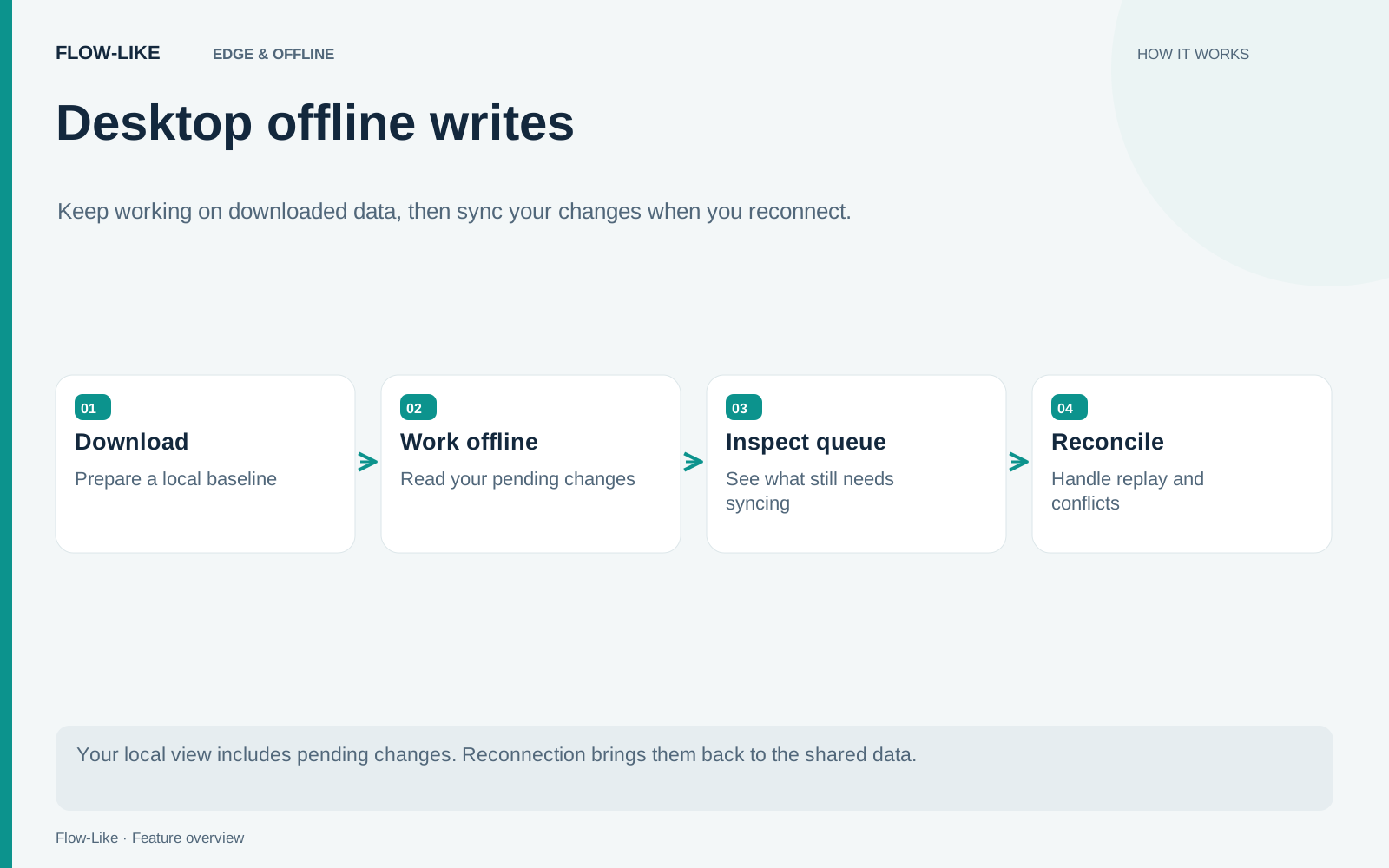
Flow-Like’s desktop Offline access settings let you choose which tables an online project keeps on your device. Your changes enter a durable local queue and appear in subsequent local reads. When the hub is reachable, the desktop sends those changes for replay and reports which ones the cloud accepted.
Prepare the equipment table while connected, then use the queue to follow the corrections from local save to cloud acknowledgement.
Choose what the laptop should keep
Open the project’s settings in the desktop app and select Offline access in the Data group. Choose an existing table and its primary-key column. The key identifies a record across local edits and later replay; it must contain unique, non-empty values.
Preparation checks the key and establishes the table’s local version. If an older workflow run still has direct access to the cloud table, activation waits for that run to finish. Let preparation complete before relying on the table during a journey.
By default, the desktop caches table files as workflows read them. This lazy mirror avoids downloading every file merely to begin using a table. It also means that a table you have browsed may be only partly available offline. A query that needs an uncached file fails clearly rather than returning an incomplete set of rows.
For the equipment review, turn on Download everything. Wait until the table is fully available offline. This keeps all files for its current version on the laptop, including the files needed by its indexes. New versions can require additional downloads, so check that state again before leaving.
The storage card shows the space used by copies and queued changes. Allow room for updates as well as the initial download. Turning on Download everything can require substantially more disk than viewing a few pages of records.
Make a correction and read it back
Disconnect and change an equipment location from one room to another. Reopen the record. The local view includes the correction, even though a colleague using the cloud copy may still see the old room.
For a table with offline access enabled, writes use this queue while connected too. That keeps the same device’s changes in order if the connection drops during a run. Cloud visibility remains asynchronous: a local save and a cloud acknowledgement have different meanings.
Workflow nodes expose a write state and operation identifier. Use Find a change by ID on the Offline access page to inspect a particular operation. If several pending changes have been combined for replay, the lookup points to the combined operation.
The shared write manager maintains the local view and replay state. Your interface can use those results to tell a reviewer which corrections are still on the laptop.
Resolve what cannot be synchronized
Reconnect and open Offline access. Use Sync now to request synchronization and inspect any blocked changes.
A change from another client can produce a conflict. The revision check covers the whole table, so even an edit to a different row can block replay. Each table and file path has its own queue: a blocked equipment table does not stop an unrelated table from synchronizing.
Read the reported reason before choosing an action. Retry is useful when a temporary failure has been resolved. Skipping a change requires a reason and can require acknowledgement that an earlier attempt’s outcome is uncertain. Before skipping a correction you still need, record it so you can reapply it deliberately against the refreshed data. For a conflicting new file, Keep both saves its content under another name.
Deleted cloud tables are not recreated from a laptop’s copy. Reconnection also checks your authority to update the source. Having a local copy does not grant permanent write access.
Keep the account and scope clear
Offline state belongs to a particular hub, account, app, and installation. Switching accounts does not transfer pending work to the next person who signs in. Return to the originating account and hub to resolve that queue.
Choose tables with a manageable rate of concurrent changes. While offline access is enabled, use supported row operations; schema changes, graph operations, and arbitrary SQL mutations do not use this path. Synchronize or explicitly skip remaining work before turning access off.
Before the trip, the useful checks are visible in one place: the right table is active, Download everything has finished, and there is enough storage for the work ahead. After the trip, finish by checking the queue. An empty list of unresolved changes is a better stopping point than merely seeing the network icon return.
Get automation insights delivered
Sign up for our newsletter to receive the latest updates on Flow-Like, automation best practices, and industry insights. No spam — just valuable content.