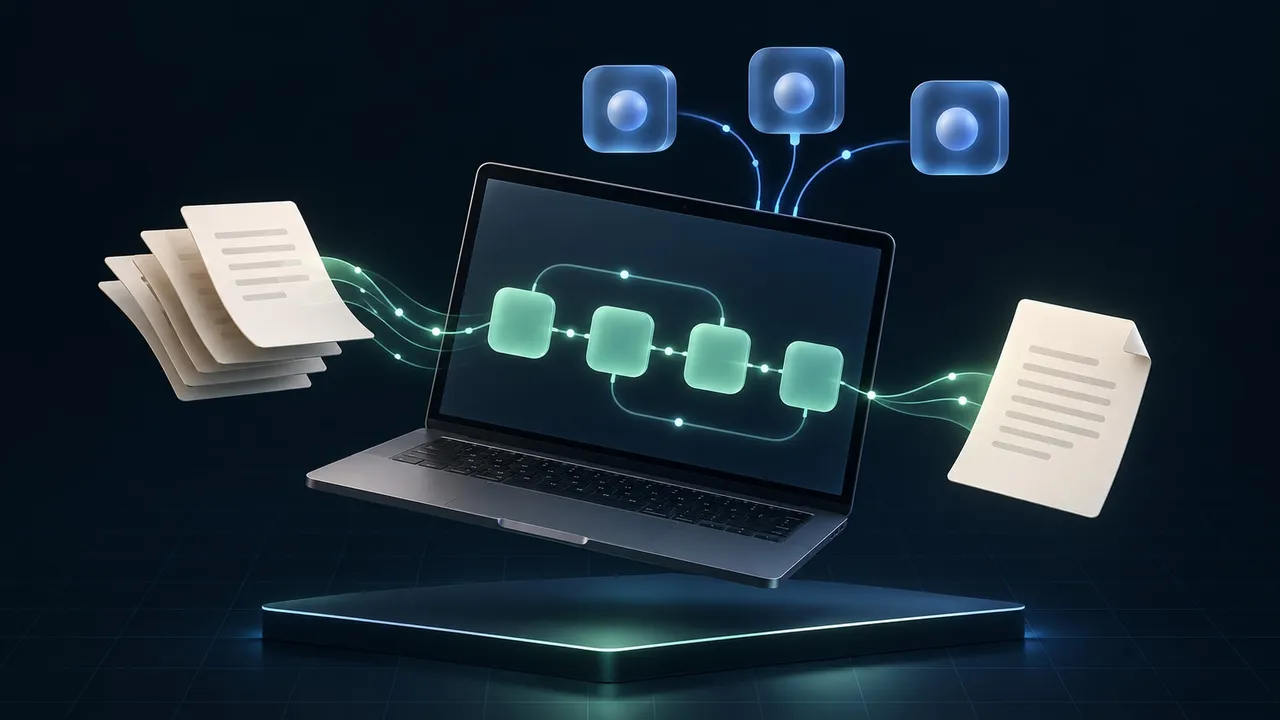
A morning brief is more useful when it is ready before you open a chat. An assistant can read yesterday’s project notes and leave you a list of decisions for the day.
OpenAI’s dots, Meta’s Muse and Grok Bot offer versions of that experience. They combine a model with tools, retained context and a computer where work can continue between conversations. You can also build recurring assistants in Flow-Like, with the workflow and model running on your own device.
This overview reflects official product documentation checked on October 3, 2026. It compares documented capabilities, without ranking model quality.
What are dots, Muse and Grok Bot?
Each product can act across apps and return with results or a request for your input.
| Product | Main emphasis | Where the work runs |
|---|---|---|
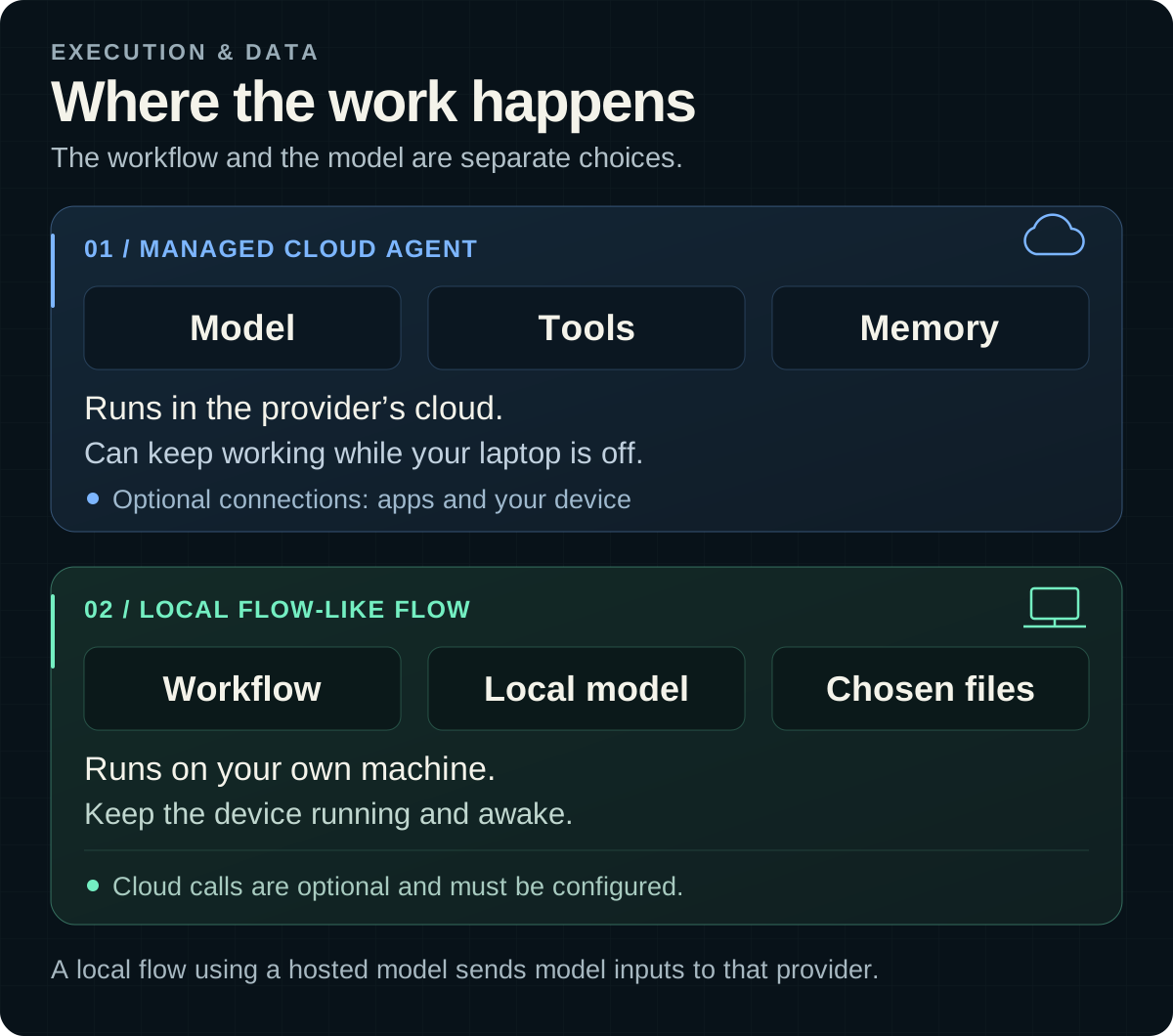
| OpenAI dots | An ongoing assistant inside ChatGPT. It uses relevant memory, coordinates background tasks, and can be reached through ChatGPT, Slack or Teams. | Its own cloud computer and browser, with optional access to a connected personal computer. |
| Meta Muse | A personal assistant for goals and everyday tasks, including travel, email and shopping. You can talk to it in the Muse app or WhatsApp. | A dedicated cloud virtual machine and browser that keep working after you close the app. |
| Grok Bot | Named bots with different responsibilities. They can work in parallel, hand tasks to each other and turn repeatable work into skills or schedules. | A persistent computer in Cursor’s cloud. An account’s bots share files and browser sessions, while keeping separate conversation context. |
The emphasis differs more than the basic idea. Dots builds on your ChatGPT context. Muse starts from personal goals and now also has small-business tools, including connections to Shopify and Meta business accounts. Grok Bot makes a team of persistent specialists part of the interface.
Desktop access is already part of this category. Dots can connect to your computer, and Muse offers a Mac app with permissioned access to local files and apps. That access does not make their cloud agent a model running on your device.
Where Flow-Like fits
Flow-Like gives you a visual workflow to build the assistant’s job. You choose what starts it, which information it reads, where a model helps, and what happens with the result. Its agent nodes let a model choose between tools you provide when the task needs that flexibility.
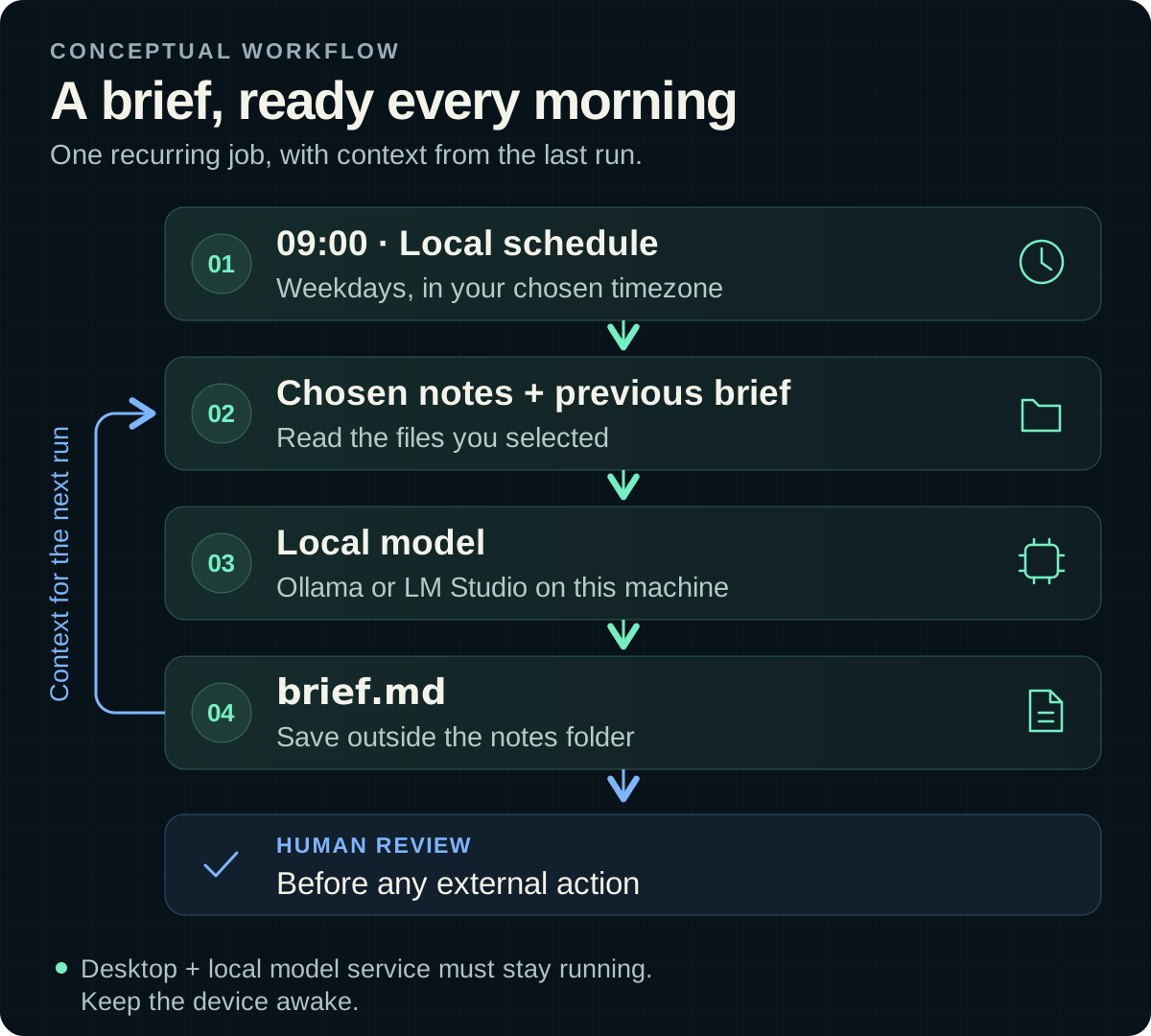
For a project brief, the flow can read selected notes, compare them with the previous brief, and save a summary. If it misses something, you can inspect the inputs and change the relevant step on the canvas.
The tradeoff is setup. A managed agent comes with its own conversational experience and operating environment. In Flow-Like, you assemble the workflow for the responsibility you want to hand over.
Build a daily brief on your own device
Start with a small folder of text or Markdown project notes. The goal is a saved brief that identifies changes and open questions, with filenames beside the claims.
Set up local execution and a local model
Install Flow-Like Desktop, enable Developer Mode, and create an Offline App. Create a flow, set its execution mode to Local, and add a Simple Event as its starting node. Offline apps keep their primary app data on the device and work without signing in.
Start Ollama or LM Studio on the same machine and load a suitable local text model. In your flow, use Ollama Model or LM Studio Model with that service’s endpoint and model ID. The model setup guide covers both connections. Choose a model that fits your hardware; verify tool calling too if you add an agent.
Local execution and local inference are separate choices. A local workflow that calls a hosted model still sends its model inputs to that provider. For this example, keep the files, model endpoint and output local, and avoid an automatic fallback to a hosted model.
Read the notes and write the brief
Create a separate output directory outside the notes folder. In Studio, use Local Path to Path on that existing directory, then Child to construct the path for brief.md. The workflow can then follow this sequence:
- Use Local Path to Path for the notes directory, then List Paths. Disable recursive listing if subfolders are outside the task.
- Select the text and Markdown files you want, limit their number and size, then load them with Read to String. Include each filename with its contents.
- Check
brief.mdwith Path Exists? and load it with Read to String when present. Pass the notes and previous brief to Invoke Simple. Connect your local model, disable streaming, and ask for changed facts, unresolved questions and source filenames. On the missing-file branch, pass an empty previous brief and request a baseline summary. - Connect the model’s Done output to Write String, with Result as its content and the
brief.mdpath as its destination. Keeping that file outside the input folder prevents the flow from reading its own output as new evidence.
This follows a fixed sequence. If you want the assistant to decide which notes to inspect, use Agent from Model, expose a bounded read function through Register Function Tools, and run Invoke Agent. Enforce the permitted folder in that function. The agent guide explains the tool setup and iteration limits.
The saved brief supplies context for the next run.
Put the working flow on a schedule
Run it manually and check the summary against the source files. Then create an active Cron Event pointing to the Simple Event, choose Local, and set 0 9 * * 1-5 with your timezone, such as Europe/Berlin. That schedules a weekday run at 09:00. See the Cron guide.
Keep Desktop and the local model service running, and the device awake. Do not assume a run missed during sleep will be replayed. For continuous availability, use an always-running machine you control. You can also adapt the flow for a self-hosted deployment, replacing desktop paths with that deployment’s storage access.
Add actions when the brief is useful
A saved brief is a good first result. Later, you might add a proposed email or a task update. Save the proposal for review before connecting the sending or updating step. Our interactive approval walkthrough shows how an attended remote run can wait for a decision and check the selected response before acting.
You can also extend the flow to operate other software. Browser automation can work with Chrome or Edge, while desktop automation can find controls through accessibility information or text recognized on screen. Desktop control needs the applicable OS permissions and a compatible active session. Check the resulting file or application state before reporting success.
Flow-Like is useful when you want to define the recurring job yourself and control its execution, model and data. Start with one folder and one brief. Once it earns its place in your morning, extend the flow.
Get automation insights delivered
Sign up for our newsletter to receive the latest updates on Flow-Like, automation best practices, and industry insights. No spam — just valuable content.