
A recorded click at a fixed position can hit the wrong control as soon as someone moves the window. That makes even a modest desktop task, such as opening a report and choosing Export, depend on the arrangement of the screen.
Flow-Like’s computer automation nodes offer other ways to identify the target. Accessibility can expose the control’s role and name. OCR can locate visible text when an application does not provide enough useful structure. Screen-frame metadata maps the resulting image coordinates back to the desktop input space.
The test is straightforward: find the Export control, move the window, and find it again. Use a disposable report so the action is easy to observe and repeat.
Observe the control in its current window
Start an automation session, focus the intended application, and capture its current state. If the application exposes the target through accessibility, inspect that structure first. A named native control usually supplies more meaning than a patch of pixels.
For a custom-rendered control, Find Text can search recognized text, and Click Text can use the selected match. OCR depends on the operating system’s support, installed languages, and how the application renders its text. Small lettering, unusual contrast, or several identical labels can make the target ambiguous.
Choose a search region and matching rule appropriate to the application. Finding “Export” in a help panel should not be enough to click the toolbar button. Inspect the selected match in the test before allowing the flow to proceed.
The OCR implementation exposes recognized text and bounds, with confidence when the underlying engine provides it. Windows OCR does not supply confidence values. Missing confidence is not equivalent to a failed recognition, and a reported value does not establish that the chosen control is correct.
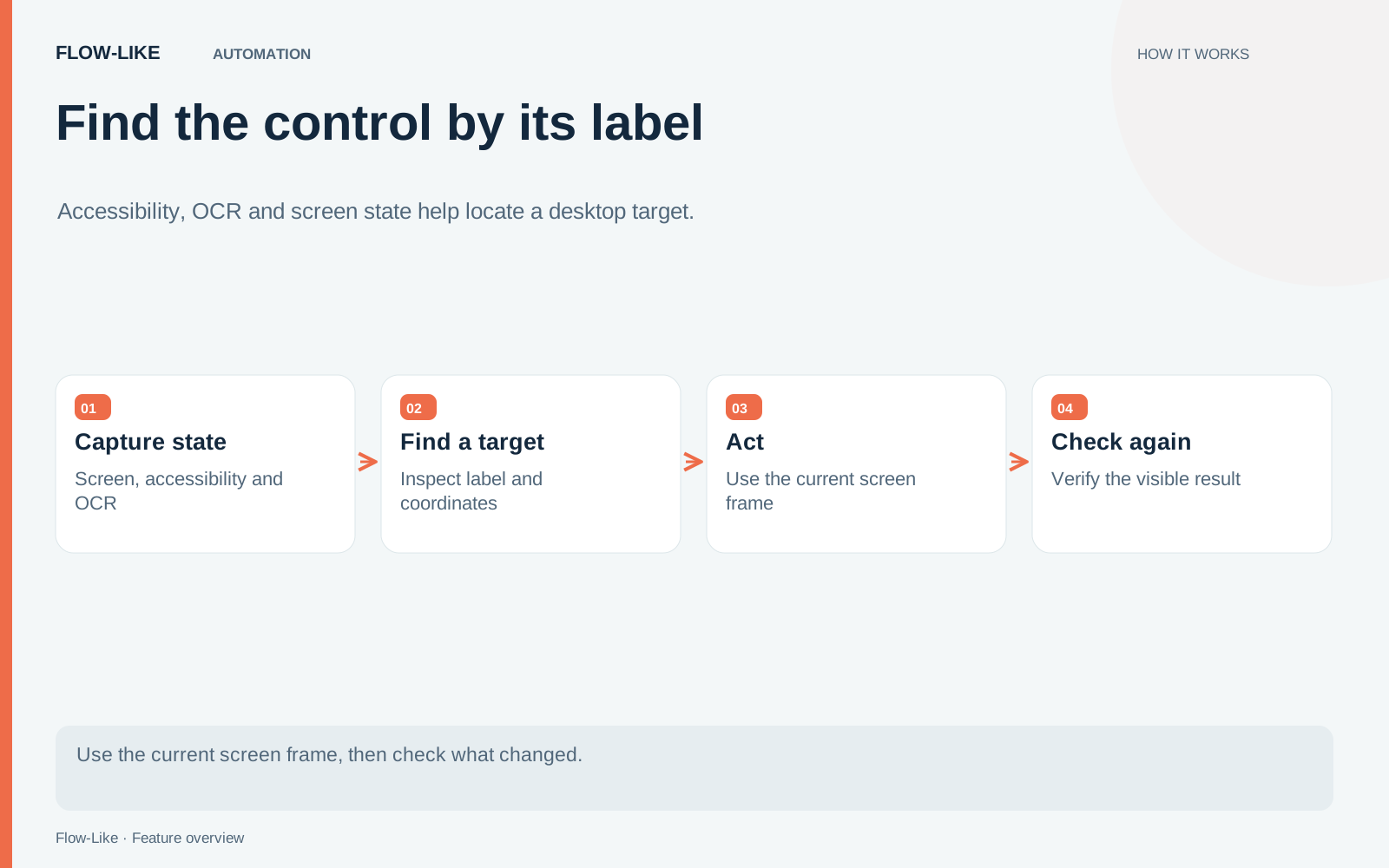
A capture is more than an image. Its frame describes the captured region’s origin and scale relative to desktop input coordinates. A pixel at the center of a cropped window image is not necessarily the same coordinate on the whole display.
Connect the frame where the consuming node supports it. This matters on scaled displays and when a window moves to another monitor. The capture-state implementation brings accessibility and OCR candidates into a shared screen-state representation, so targets can be related to the current capture.
Now move the test window and capture again. Repeating the observation is part of the workflow’s logic; the old image should not silently remain the authority for a new screen arrangement.
Verify more than movement on screen
After clicking Export, wait for the expected dialog or another specific visible result. Find Text has an explicit not-found path, which gives the workflow somewhere to go when its assumption fails.
Screen-change and screen-stability waits can also help. A change wait observes a visible difference, while a stability wait looks for a period without sufficient change. The stability code compares reduced image representations within defined tolerances.
Neither observation proves that a report was successfully exported. A dialog appearing is an intermediate result. If the task promises a file, inspect the output file or another application-level confirmation before reporting completion.
Use an intentional failure in the example. Hide the expected button or open a different screen, then verify that the flow follows its not-found or timeout branch. Preserve enough state for a person to understand the mismatch and stop before an unrelated click.
Desktop automation also needs the relevant OS permissions and an active, compatible session. Grant screen-capture and accessibility access where the operating system requires them. Run the moved-window example with the application, language, and display setup that the workflow will use.
The result is a workflow that bases its next action on the screen it actually sees. Moving the window becomes a condition it can observe and account for, while the final business result remains something it must check separately.
Get automation insights delivered
Sign up for our newsletter to receive the latest updates on Flow-Like, automation best practices, and industry insights. No spam — just valuable content.