
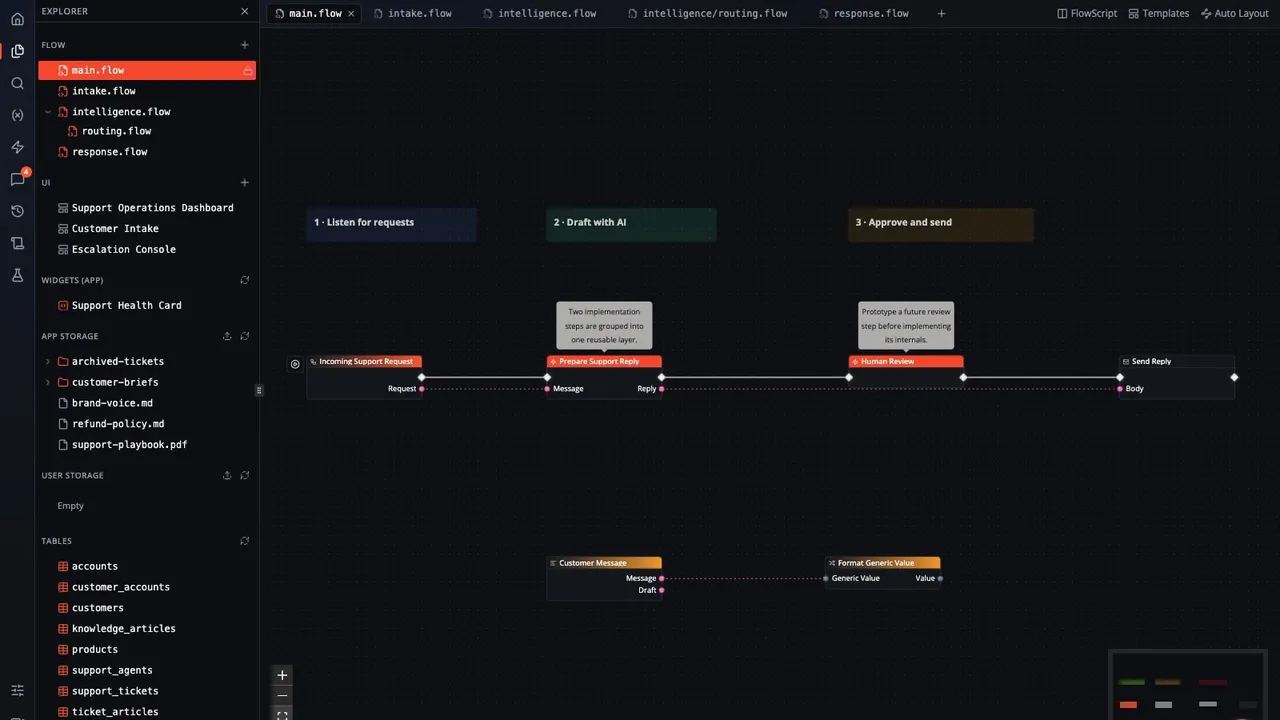
Flows rarely end where they start. The graph gains reusable modules. Then the product around it gains pages, widgets, files, tables, tests, and run history. Moving among those pieces used to cost you context.
The new Flow page turns them into one editor. main.flow and nested module documents share an Explorer with UI, app and user storage, and tables. Flow tabs remember their position, FlowScript opens beside the graph, and the canvas keeps its state while another document is active.
One Board, many working contexts
Every Board still starts with main.flow. It just does not have to end there.
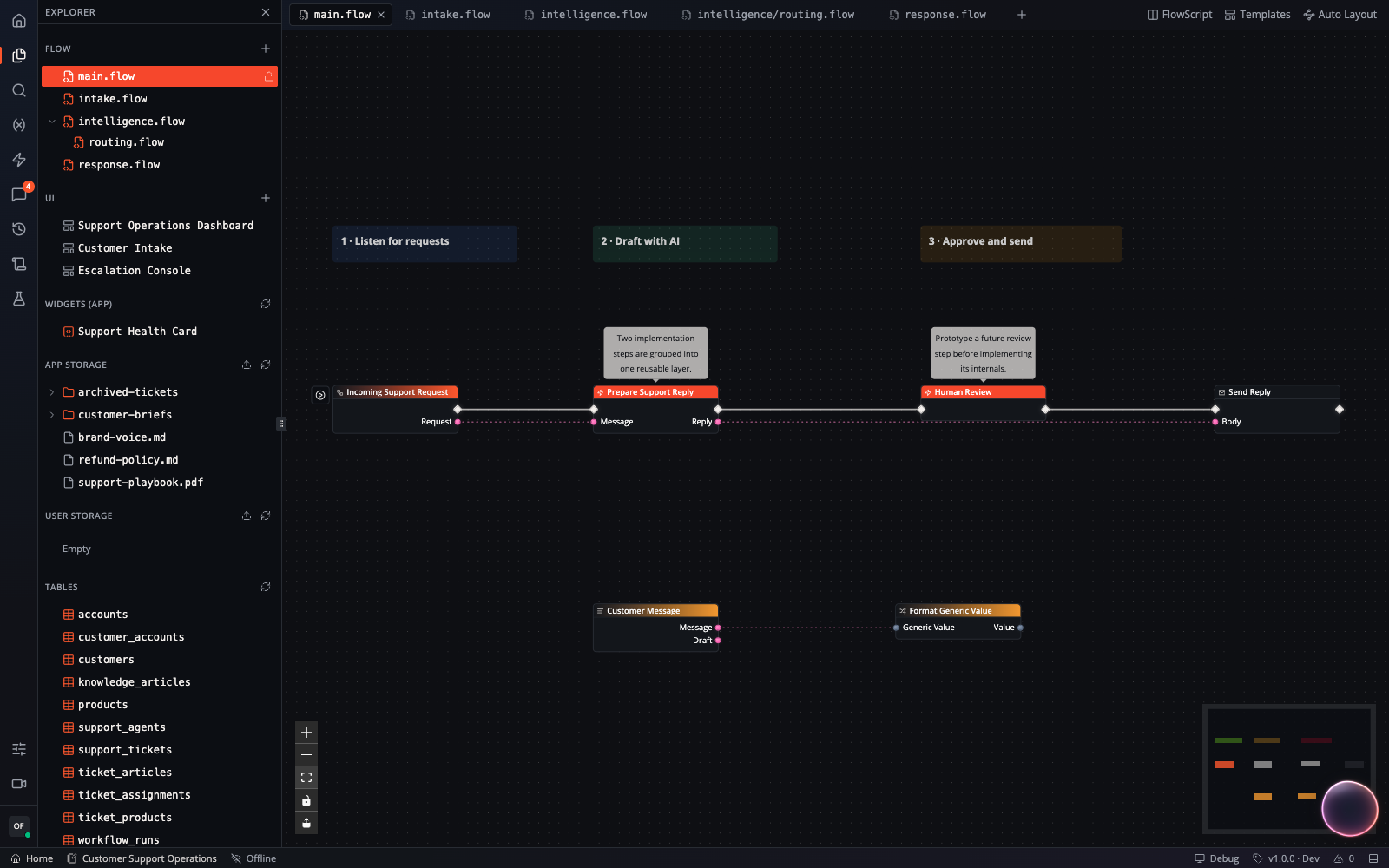
Modules now appear as .flow documents in the editor. You can create them, give them clear names, move them, and nest them into paths such as intelligence/routing.flow. Open a module and it gets its own tab. Keep main.flow, intake.flow, and response.flow open while you move through the system, instead of repeatedly drilling in and backing out of one graph.
Together, those tabs give one Board several focused working contexts while the automation remains one connected project.
A .flow tab remembers where you were inside that file, and its saved position survives a reload. You can even open the same file twice, leaving one tab at a caller and another deeper inside its implementation. The editor still shows one active canvas at a time, which keeps edits unambiguous while preserving each working context.
FlowScript follows the same structure. Its multi-file workspace keeps each draft and editor position with its file, while diagnostics are recalculated against the Board-wide context. Calls across files become part of the same working model as calls across the canvas.
The result is a practical way to let a flow grow. Start in main.flow. When a piece of logic earns a name, Move to module can relocate selected canvas content or a function into the module you choose. Group related modules as the system develops. The file tree can match the architecture in your head.
One Explorer for the resources around the flow
The new Explorer gathers flow documents and their supporting app resources into one tree. The Explorer shows what exists. The tab strip shows what you are working on.
From one tree, you can reach:
- Flow files, including nested modules
- UI pages and reusable app widgets
- App Storage and User Storage
- App and user tables
Each resource opens inside the editor. A page can open as a tab next to a module. A storage document can open in a tab next to main.flow. A table can be inspected without sending you away from the Board. The shared tab strip preserves ownership boundaries. Flow documents and pages stay attached to the Board, while widgets, storage, and tables keep their app or user scope. Pinning a Board version locks its flow documents; pages remain editable. Table management remains in Data Studio.
That organization matters most on large apps. Workflow logic, interface, data, and supporting files are visible together before you open anything. The Board reads like a project instead of a pile of separate destinations.
Files become part of the build
Integrated files go beyond a shortcut to storage.
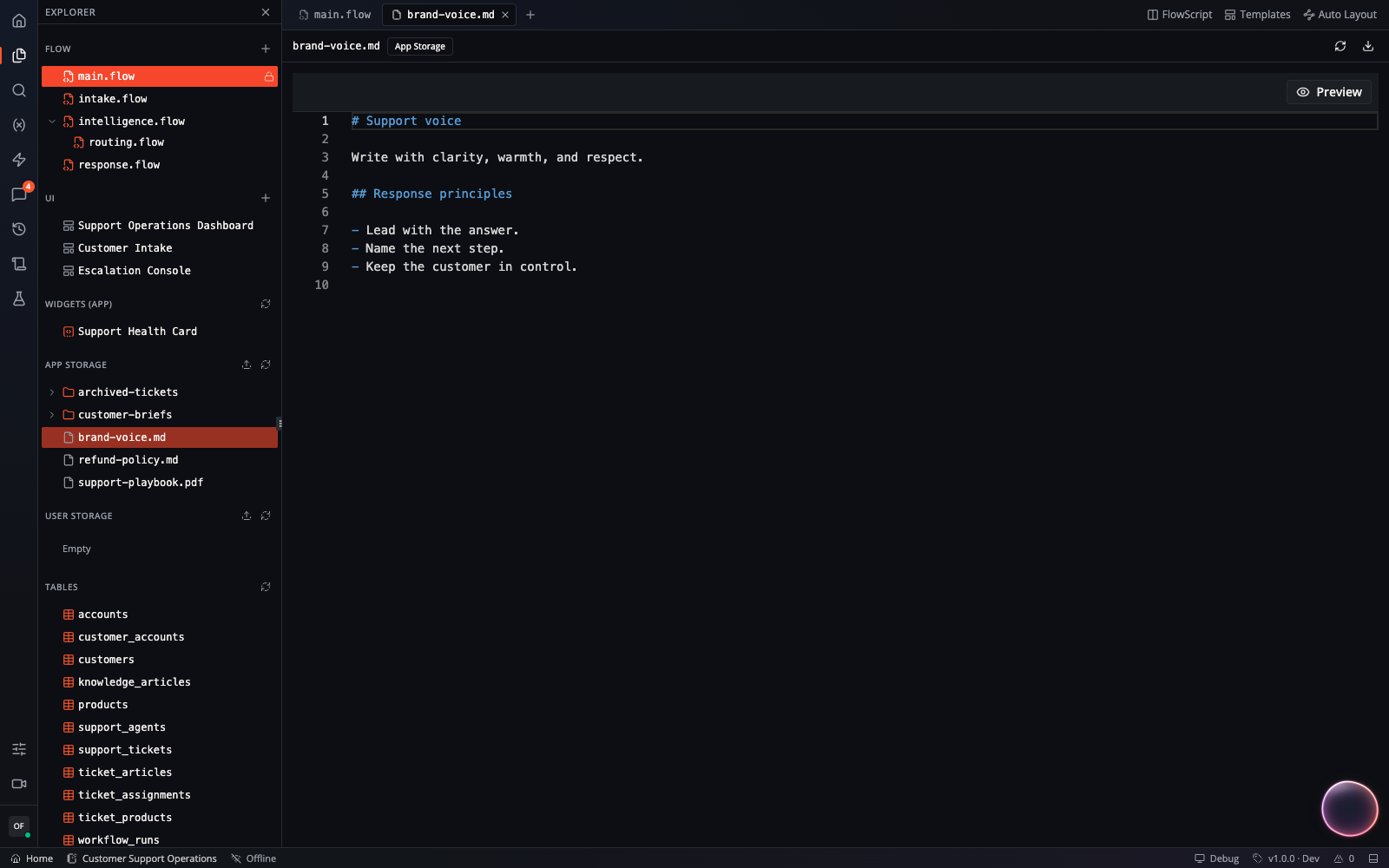
The Explorer browses App Storage and User Storage as lazy-loading trees. You can upload several files at once, preview supported formats, download an item, and edit text or code files directly in a tab. The scope remains visible, so a shared app resource and a user-specific resource never look interchangeable.
Files can also become graph inputs. Drag a file or folder from the Explorer onto the canvas and Flow-Like wires the correct directory node to a child node carrying the selected path. A support policy, prompt, reference document, or folder of customer material can move from project context to workflow input in one gesture.
That closes a small but expensive gap. A file used to live near the flow conceptually while its path had to be reconstructed inside the graph. Now the source and its workflow representation begin from the same object.
The canvas finally has a workbench
The page around the graph has been rebuilt as a resizable editor shell. A fixed activity rail replaces the floating controls that used to compete with the canvas. It opens focused sidebars for the Explorer, graph search, variables and functions, entry points, and comments. The rail occupies its own column, so it cannot cover a node hiding at the edge of the graph.
Across the top, tabs and clickable breadcrumbs make location explicit. FlowScript can open in a split beside the graph. Searchable Board commands and keyboard shortcuts keep frequent actions close. Graph search opens in the sidebar and takes you straight to the node you need. Auto Layout remains available when the graph itself needs untangling.
The bottom panel brings Problems, Runs, Logs, and Tests into one consistent area. Node Info docks on the right, where it can show the selected node’s category, pins, errors, and collaboration context without replacing the canvas. The status bar keeps the operational details that affect your next decision in view, including connection state, Board version and stage, read-only state, problems, and run activity.
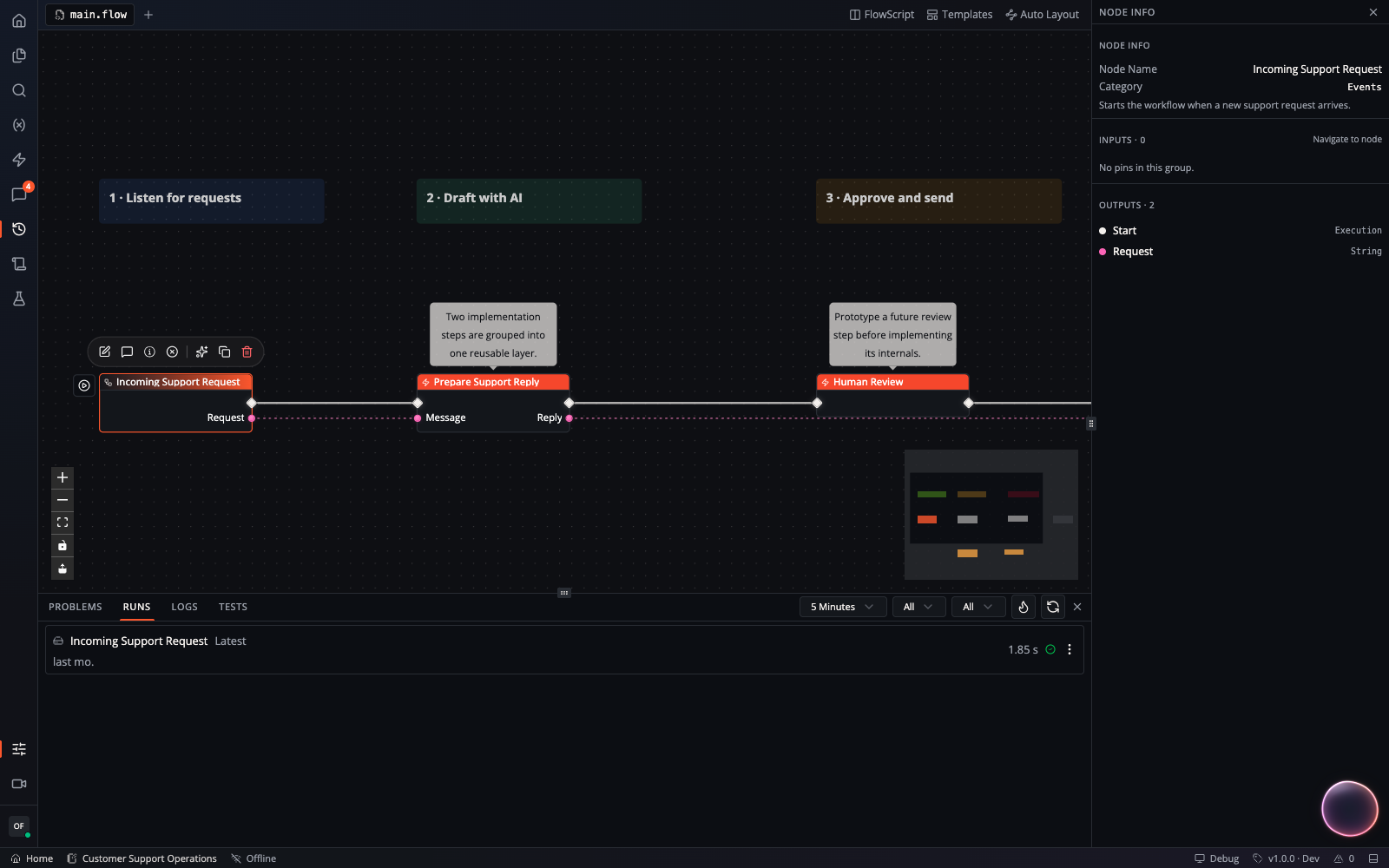
These surfaces share the available space instead of stacking over it. Open Run History to investigate an execution, keep Node Info beside the selected event, then close either panel and hand the room back to the graph. Each surface has a predictable edge and a clear close action.
The same structure adapts to smaller screens. Docked tools move into one bottom drawer when the viewport gets tight, then return to their desktop positions when space comes back.
Collaboration has an address
The new organization also gives collaboration more useful context. When live awareness is available, presence can attach to a file, layer, or selected node. You can see where someone is working from the Explorer or inspector, then follow them, jump to their location, or open the file they are editing.
Summons, reactions, and chat remain close to the work. A teammate’s presence now points to the file, layer, or node that matters.
Built to grow with the flow
The Flow page now matches the real unit of work: the system around the graph. Start in main.flow. When that system grows, every new resource stays close and every flow tab keeps your place.
Try the new Flow page and tell us where it helps, where it gets in your way, and what should earn a place in the editor next on Discord.
Get automation insights delivered
Sign up for our newsletter to receive the latest updates on Flow-Like, automation best practices, and industry insights. No spam — just valuable content.