

A shipment shows the wrong expected-delivery date. Before changing it, you need to establish which record you are looking at, where the value is stored, and whether the correction affects a linked order or customer.
This is a useful way to approach Data Studio: begin with a business question and follow the object back to its data. The July ontology article introduced the model. Here, we will use it to investigate and correct one synthetic shipment.
An ontology maps existing tables into object types and relationships. The shipment object is a view over stored data, so editing a permitted property changes that underlying value. Keep this exercise in a sample app with a local ontology and records you can safely change.
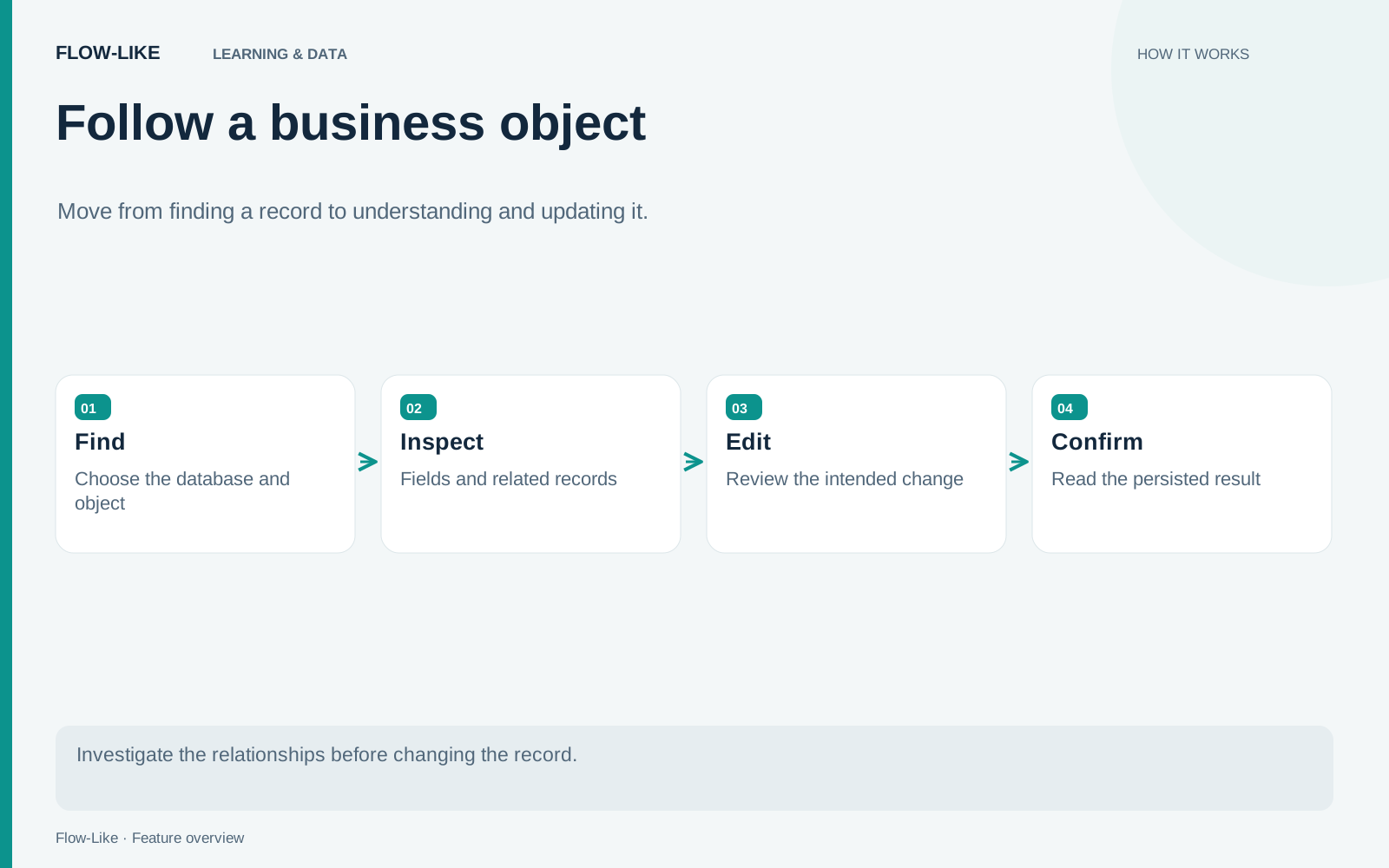
Establish the source
Open the app’s Data Studio workspace. Select the intended database and ontology before finding the shipment. Project data, personal data, and an installed remote ontology can expose similar-looking records with different ownership and editing rules.
In Explore, choose the shipment object type and open the sample record. Check its identifier, display information, and relevant properties. The preview is useful for finding an object, but a filtered set of loaded rows is not necessarily a complete answer to a question about the whole database.
If the source is unclear, inspect the object type in Model. Its table mapping and identity column explain which stored row the object represents. Use Sources to inspect the corresponding table when you need to compare the raw fields with the object view.
Follow the relationship to the order or customer. Confirm that the shipment belongs to the record you expected. A correct date on the wrong shipment is still a bad correction, and the relationship often provides the context needed to catch that mistake.
Review the editable fields
Open Edit in the object sheet. Change the expected date using its temporal editor and review the highlighted field before choosing Save Changes. Read back the displayed value after the save completes.
Some fields are locked. Identity columns and fields used to link objects stay read-only here because changing them can alter which object or relationship the value belongs to. Geometry, binary, vector, list, and nested values are also outside this property-editing path. The lock explanation helps distinguish a protected identity from an unsupported value type.
Permission matters too. Local object editing requires Write Files or Write Database permission on the project. Objects exposed through installed remote ontologies are read-only in this view. Their presence in Explore does not grant direct write access to the producer’s data.
The Data Studio guide describes these boundaries and the equivalent property editing available in the graph inspector.
Read a conflict before saving again
Suppose a colleague corrects the delivery date while you still have the shipment open. You enter a different date and try to save. Both edits concern the same stored field, so the original value your editor read matters.
Each save checks the original values of the fields you changed. If another editor changed one of those fields, the save writes nothing and reports the conflict with the current values while retaining your edits. A subsequent save can replace those newer values, so read the conflict before trying again.
Changes to fields you did not edit are retained. This keeps an unrelated correction from being overwritten merely because your object sheet was opened earlier. It also makes the conflict specific enough to discuss: you can identify the field and the competing values rather than treating the entire object as inexplicably stale.
Decide whether a direct edit is appropriate
Correcting a mistaken sample date is different from authorizing a shipment to leave a warehouse. Direct property edits change stored values; they do not run the rules or workflow of a governed ontology action. Use the action when the change needs that business process.
To investigate a wider pattern, move to Queries and ask about the relevant set of shipments. Inspect the result as a table first, then use a relationship graph or chart when it helps answer the question. Local statements can be saved with their visualization configuration; remote query previews have separate read-only restrictions.
Finish by reopening the shipment, checking the corrected value, and following its relationship once more. You should be able to explain which stored field changed, why that field was editable, and why a direct correction was appropriate for this task.
Get automation insights delivered
Sign up for our newsletter to receive the latest updates on Flow-Like, automation best practices, and industry insights. No spam — just valuable content.