

Your team already maintains the handbook in SharePoint. Uploading another copy to a chat app every time it changes creates a second maintenance job. A better fit is to make the document library a source for the assistant’s indexing workflow.
Flow-Like’s SharePoint nodes give you the building blocks for that extension. You can find a site, list its document libraries, inspect their items, and download selected files. The rest of the workflow extracts the content and adds it to the same knowledge collection used by the chat.
To add the library, you need permission to copy or edit Knowledge Chat and an authorized Microsoft connection. Connect its files to the project’s extraction and indexing steps for the formats you use.
Start with Knowledge Chat in the connected catalogue, or with your team’s existing copy. Project access and the fork action depend on the owner’s settings and your installation.
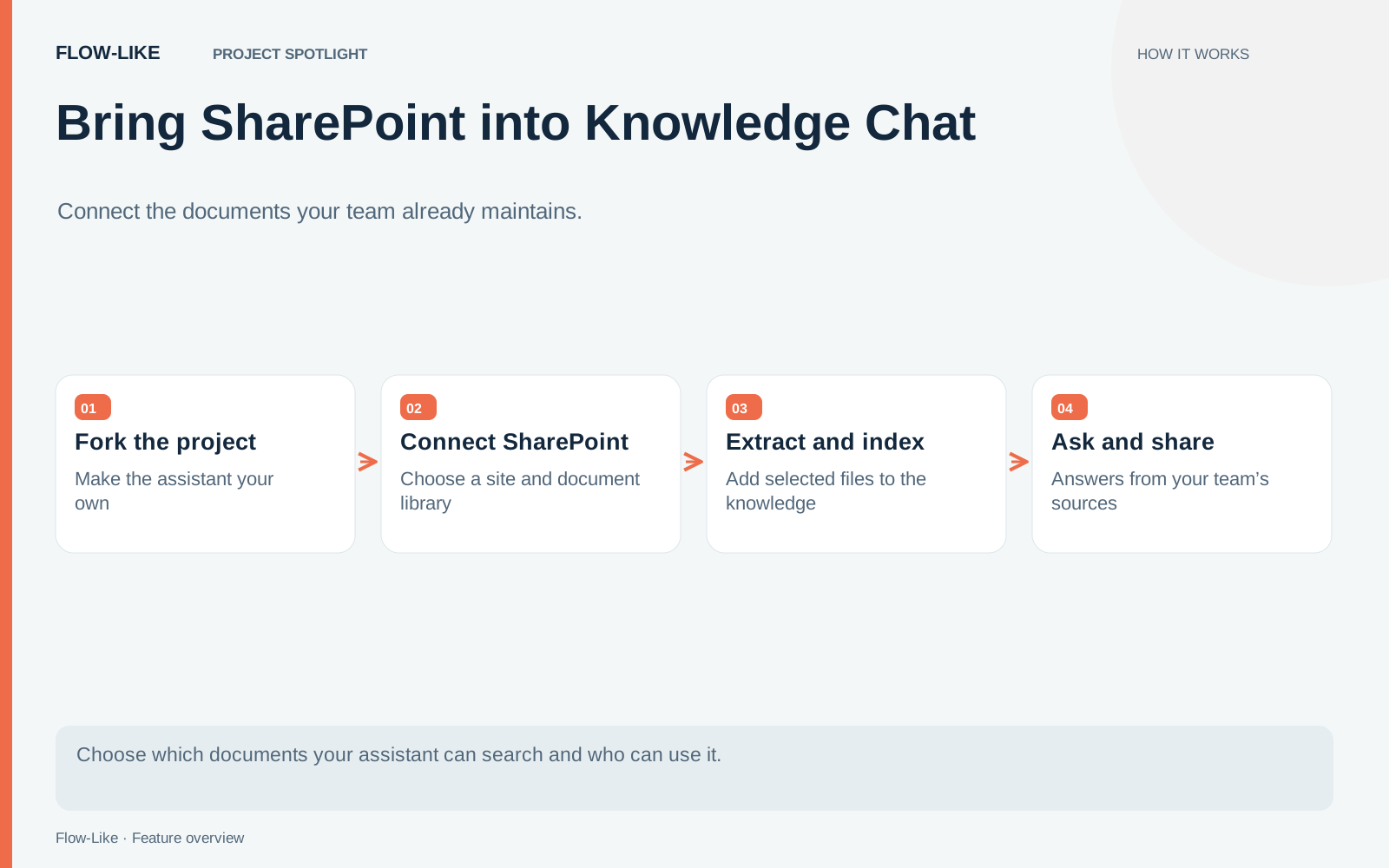
Make a copy you can work on
Fork the project and review the owner’s copy policy to see which files, indexed data and connections accompany the workflow. Configure your Microsoft credentials in the copy so it reads the library through your authorized connection.
Run a question against the existing source collection first. Keep that question as a comparison while adding SharePoint. If both the ingestion path and the answer path change at once, it becomes harder to tell why a result improved or regressed.
Choose a library deliberately
Use our SharePoint nodes to find a site, select its document library, and download the files you want Knowledge Chat to search. The nodes use Microsoft’s term “drive” for a document library.
Connect those operations in a narrow path: choose the site, select the library, list the intended items, and download a supported file. Inspect the returned fields before feeding the file to your extractor. Confirm the file you received is the one you meant to include.
Keep the first collection small. A library can contain obsolete documents, working copies, and files intended for another department. A connection’s ability to read a file does not establish that everyone using your assistant should receive its content.
Keep a document’s identity through indexing
Alongside the extracted text, carry the source identity and useful metadata. A stable source ID lets you find the passages created from one document. A source URL and readable title let you explain where an answer came from. A version or modification marker helps distinguish a replacement from a new document.
Then connect the extracted content to the project’s existing indexing stage. Use the embedding model expected by that index. Switching embedding models is a separate migration decision because vectors from different models do not automatically form one meaningful search space.
The retrieval guide describes how to store passage metadata and use it during search. Once the new document is indexed, ask a question that requires information found only in that document. Inspect the retrieved passages and the source references returned to the reader.
Decide what happens after an edit or deletion
Add a refresh schedule that matches how the library is maintained. The workflow finds the approved files again, compares their versions, and replaces changed content. A small handbook might need a daily refresh; a collection used throughout the working day may need a shorter interval.
Deletion needs an explicit path too. If a document disappears from the approved source set, decide whether its indexed passages should be removed or retained as an intentionally separate archive. Test that choice with a disposable document before connecting a large library.
Set access at the destination
Importing content does not automatically reproduce every SharePoint permission in a new search index. Choose a destination policy the project can enforce. One option is a collection whose entire source set is approved for one team. More granular access requires metadata and retrieval filters that reliably apply the reader’s permissions before content reaches the model.
Test with two accounts that have different access. Check the answer, retrieved passages, and source links. Hiding a link after generation cannot take information back out of an answer.
The same pattern extends the assistant to another source: retrieve authorized content, preserve its identity, transform it into the expected indexing input, and maintain its lifecycle. Each source joins the knowledge collection through a workflow you can inspect and change.
Get automation insights delivered
Sign up for our newsletter to receive the latest updates on Flow-Like, automation best practices, and industry insights. No spam — just valuable content.