

Your first screen should know what you came to do.
One person opens Flow-Like to continue the app they touched yesterday. Another needs to see failed runs before the morning stand-up. Someone else wants one big prompt and enough empty space to think.
Those are different jobs. They deserve different starting points.
Flow-Like’s in-app landing page has grown into Home, a personal surface you can compose around the way you work. Arrange apps, FlowPilot, live data, activity, and team context on one responsive canvas. Give every Profile its own setup. Start visually, ask FlowPilot to shape it, or edit the layout as JSON.
This is your first minute in Flow-Like. Make it count.
One Home, completely different jobs
The bundled layout is a balanced place to begin. It keeps FlowPilot ready, puts recent apps close, and gives workspace activity enough room to be useful.
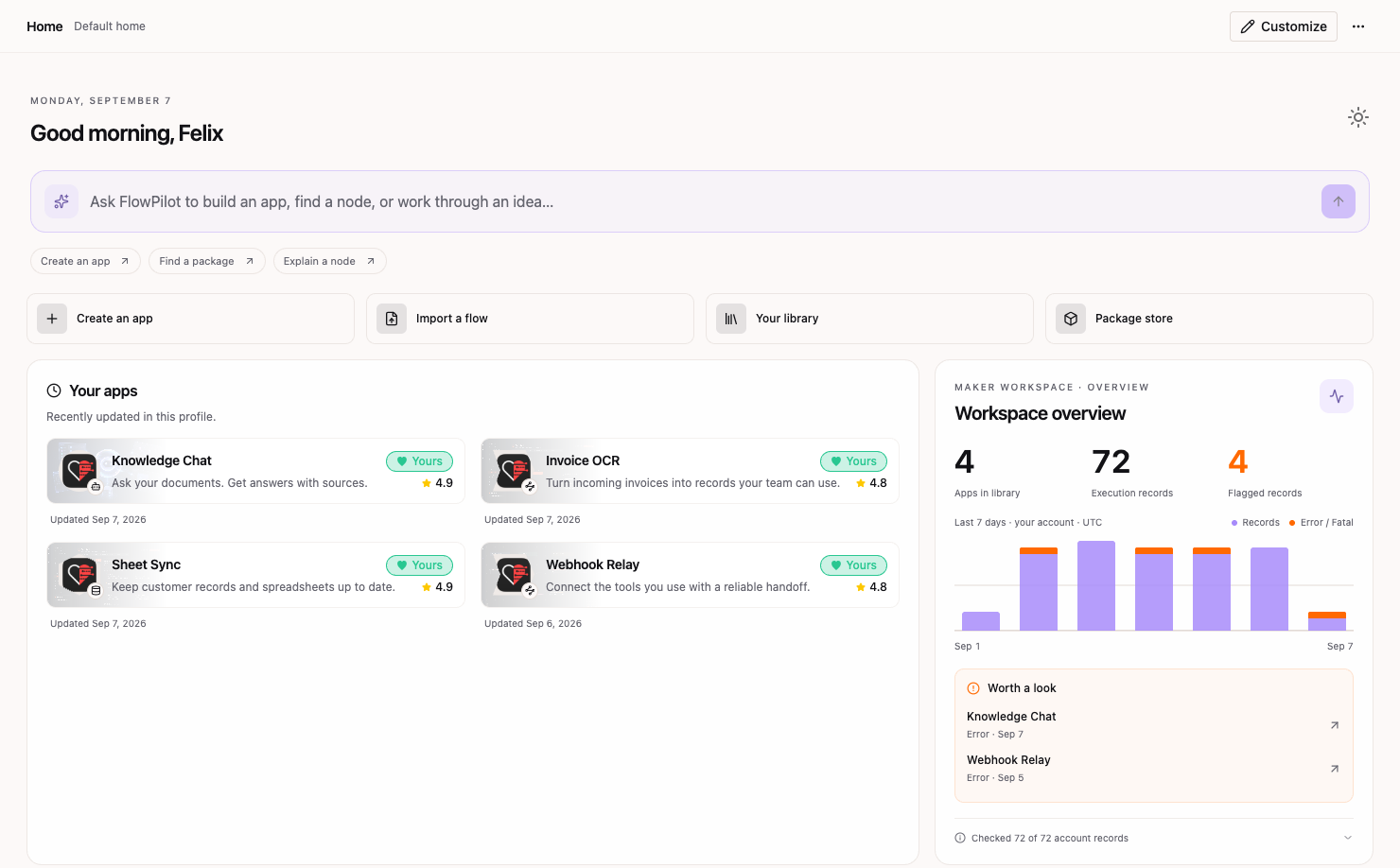
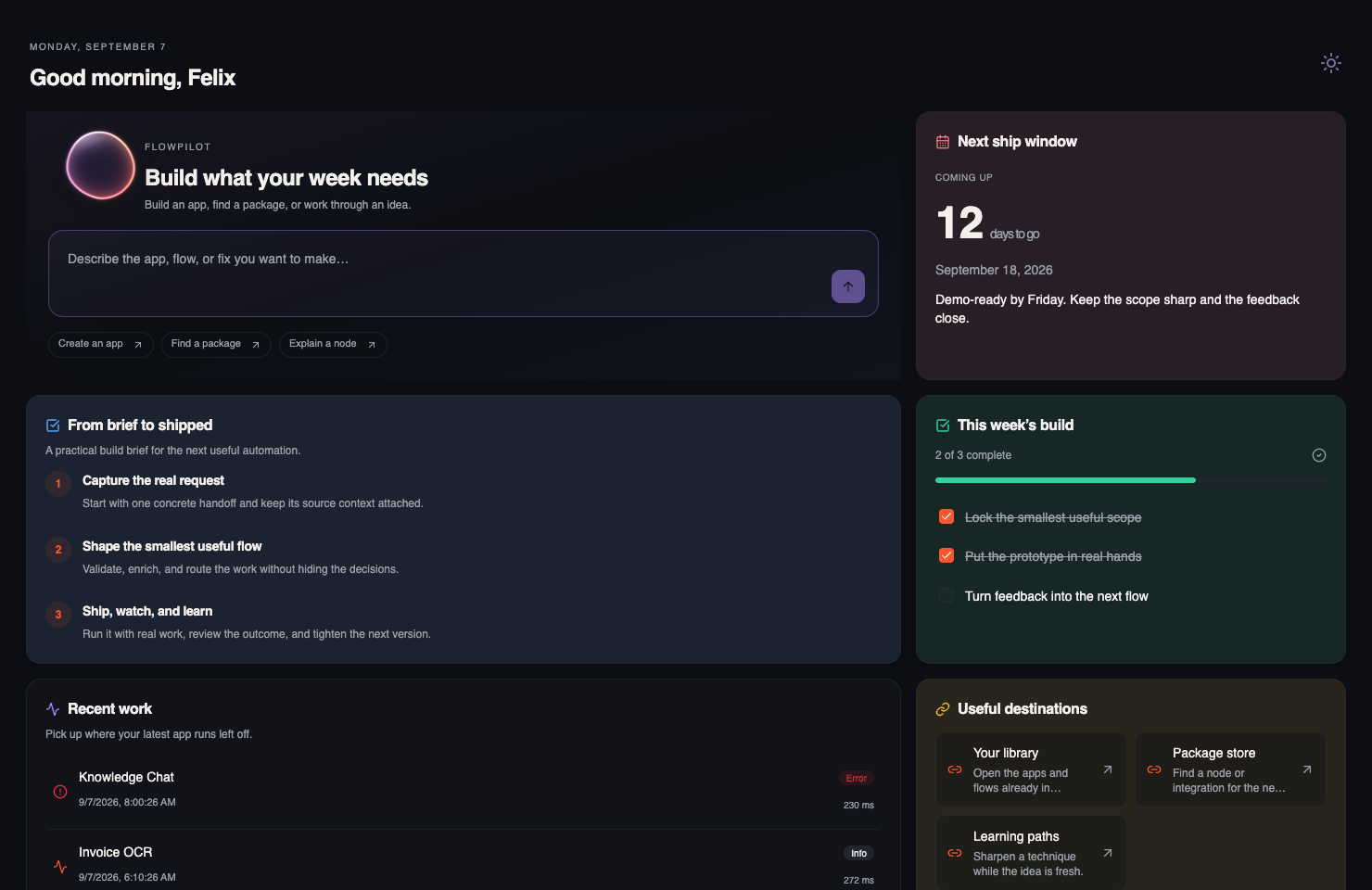
That same canvas can become an assistant-first studio. Give FlowPilot one clear hero, pair it with a shipping deadline, then bring a practical build brief, recent work, checklist, and useful destinations into view.
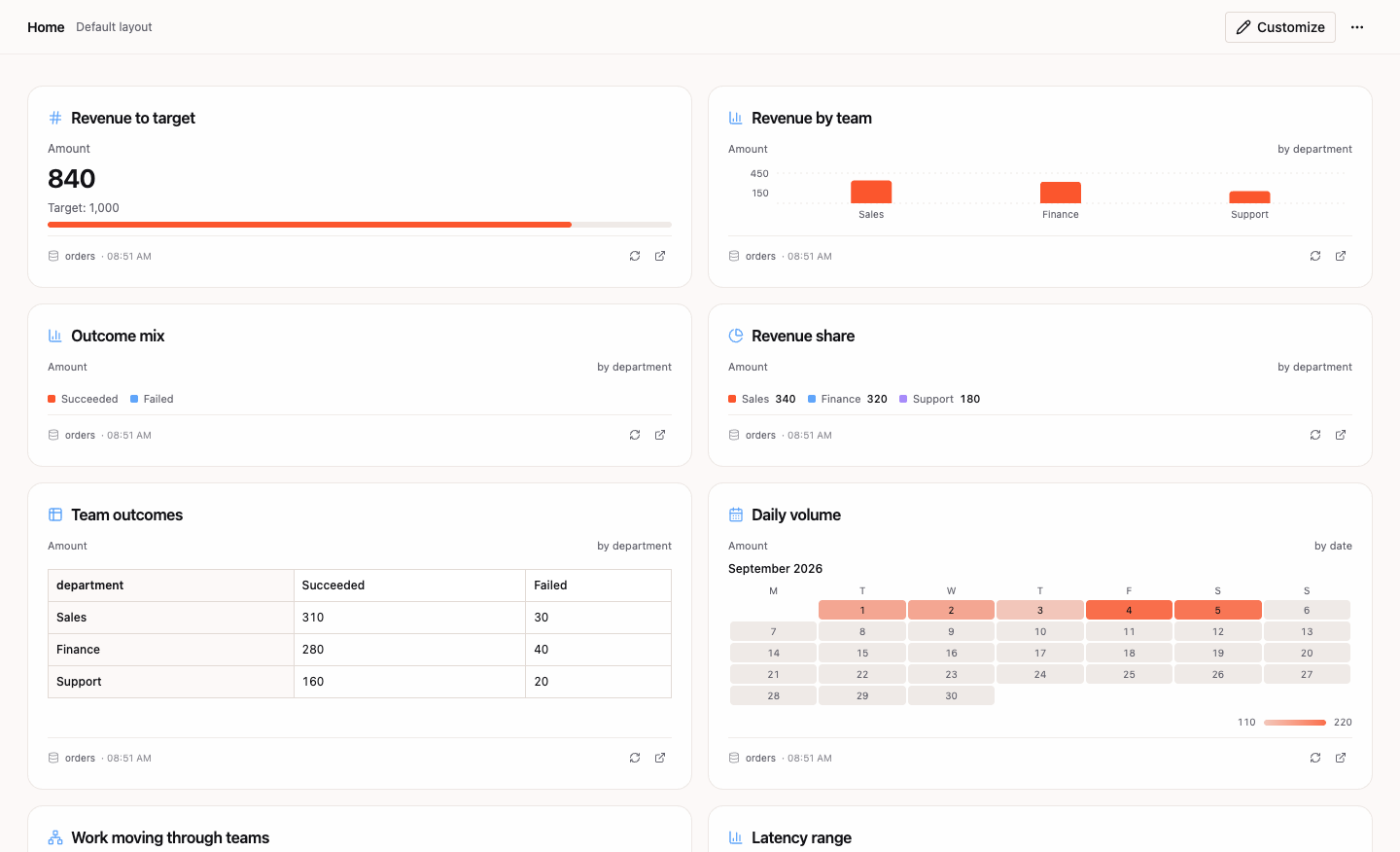
Or turn Home into an operations surface. A metric, target, trend, status board, record list, calendar, or relationship graph can sit beside the apps that act on the data.
These are configurations of the same Home system. The difference runs deeper than a color swap: each one has its own hierarchy, density, content, and route into the work.
Start with 87 building blocks
The widget catalog has 87 starting points across five parts of Flow-Like:
| Area | What you can put on Home |
|---|---|
| FlowPilot | An orb, compact bar, composer card, or full hero |
| Apps | Recent and favorite apps, hand-picked collections, spotlights, rankings, packages, models, and embedded app pages or chats |
| Content | Section headings, notes, banners, announcements, FAQs, checklists, milestones, stories, feeds, images, quotes, facts, and resource directories |
| Activity | Notifications, workspace summaries, run statistics, recent runs, schedules, and items that need attention |
| Data | Metrics, targets, charts, tables, timelines, calendars, Kanban boards, Sankey views, pivots, record views, and relationship graphs |
Choose Customize, open Add widget, and pick the pieces that earn space on your screen. Every widget gets its own settings, so two people can begin with the same preset and end up somewhere very different.
A single Home can hold up to 80 widgets. Restraint is still an option.
The canvas uses a 12-column desktop grid. Widgets can span one column or the full width, match the height of their row, fit their content, or use a fixed height. Desktop, tablet, and phone previews show how the layout will reflow before you save. Narrow screens stack the same content into a readable single column.
Then give the structure a visual rhythm. Use card, tinted, or borderless surfaces. Discovery features can go fully solid. Accents range from quiet neutral to violet, blue, emerald, orange, amber, and rose. Collection card styles are a separate choice, with standard, compact, list, editorial, icon, and carousel treatments.
Put the work behind one click
Home can hold the Apps you use and the interfaces inside them.
Add a living collection from your library, favorites, recently updated Apps, or the community catalog. Filter automatic collections by search, category, or tag. If the order matters, hand-pick the Apps and arrange them yourself.
For work you return to every day, embed an App directly. You can open its landing page, a specific route, or a chat. Query parameters travel with the destination, which means a pinned report can open with the right period, customer, or filter already selected.
That changes Home from a directory into a working surface. The next useful action can be waiting when you arrive.
Let your data meet you at the door
Data widgets connect Home to Flow-Like tables, ontology objects, and saved queries. Choose project or personal scope, add filters, group and format the result, set a target, and decide how often it should refresh.
Every result follows the current viewer’s access, so a shared starting layout does not turn private data into a shared snapshot.
The presentation can stay compact with a number or progress bar. It can also become a line, area, stacked, donut, heatmap, funnel, waterfall, Sankey, pivot, calendar, timeline, gallery, table, or status board. Record views keep the underlying work explorable, while app links give the reader somewhere to act on what they see.
A sales Profile can wake up to pipeline movement. An operator can start with failed runs and latency. A personal Profile can skip the dashboard entirely and keep FlowPilot, two favorite Apps, and a note.
Edit with your hands, FlowPilot, or JSON
The visual editor handles the everyday work. Drag widgets into place, resize them, tune their content and appearance, then use undo and redo while you explore. Changes remain a draft until you choose Save, and an interrupted editing session can be resumed in the running app.
When you have an outcome in mind, choose Edit with FlowPilot. FlowPilot receives the current layout and relevant Profile context, builds a complete proposal, validates it, and stages the result on Home for review. You still decide whether to save it.
The JSON editor gives power users a portable version of the same layout. Copy a setup, format it, make a precise change, or paste it into another Profile. Validation catches malformed layouts before they reach the canvas, and applying JSON remains an undoable draft change.
Three editing paths, one layout underneath them.
Personal by default, shared when you need it
Home belongs to the active Profile. Your work setup and personal setup can have different Apps, density, data, and personality without moving or duplicating the projects themselves.
Shared deployments also get a clear inheritance model. Home resolves a layout in this order:
- The active Profile’s personal layout.
- A published default assigned to that Profile.
- The installation’s published main default.
- The Flow-Like starter bundled with the app.
Administrators can publish a strong starting point for everyone or tailor one to a Profile template. Personal layouts stay personal. Resetting clears the personal layer and returns the user to the current inherited default, while Use Flow-Like starter loads a fresh, editable draft.
That gives teams consistency without freezing the people doing the work into one dashboard.
Make flows your own
Open Home, choose Customize, and decide what deserves to greet you.
Make FlowPilot big when the day starts with an idea. Put recent Apps first when momentum matters. Build a command center when the numbers should speak before the meeting begins. Keep one quiet note in the corner if that is the thing that helps.
Your flows already reflect how you think. Now the front door can too.
Read the Home customization guide for saving, resizing, defaults, and recovery. Then show us what you build on Discord.
Get automation insights delivered
Sign up for our newsletter to receive the latest updates on Flow-Like, automation best practices, and industry insights. No spam — just valuable content.