
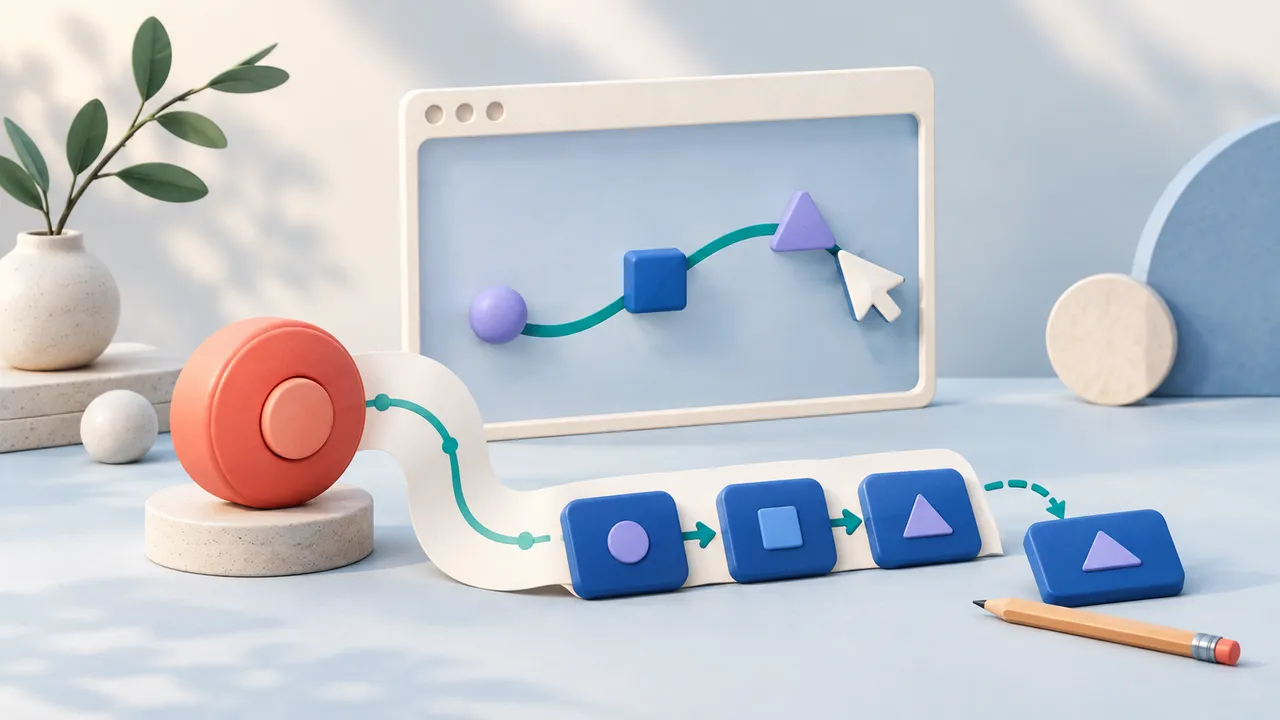
The first time you automate a form, much of the work is simply describing what you already know how to do: open the right page, enter values, choose an option, and move to the next screen.
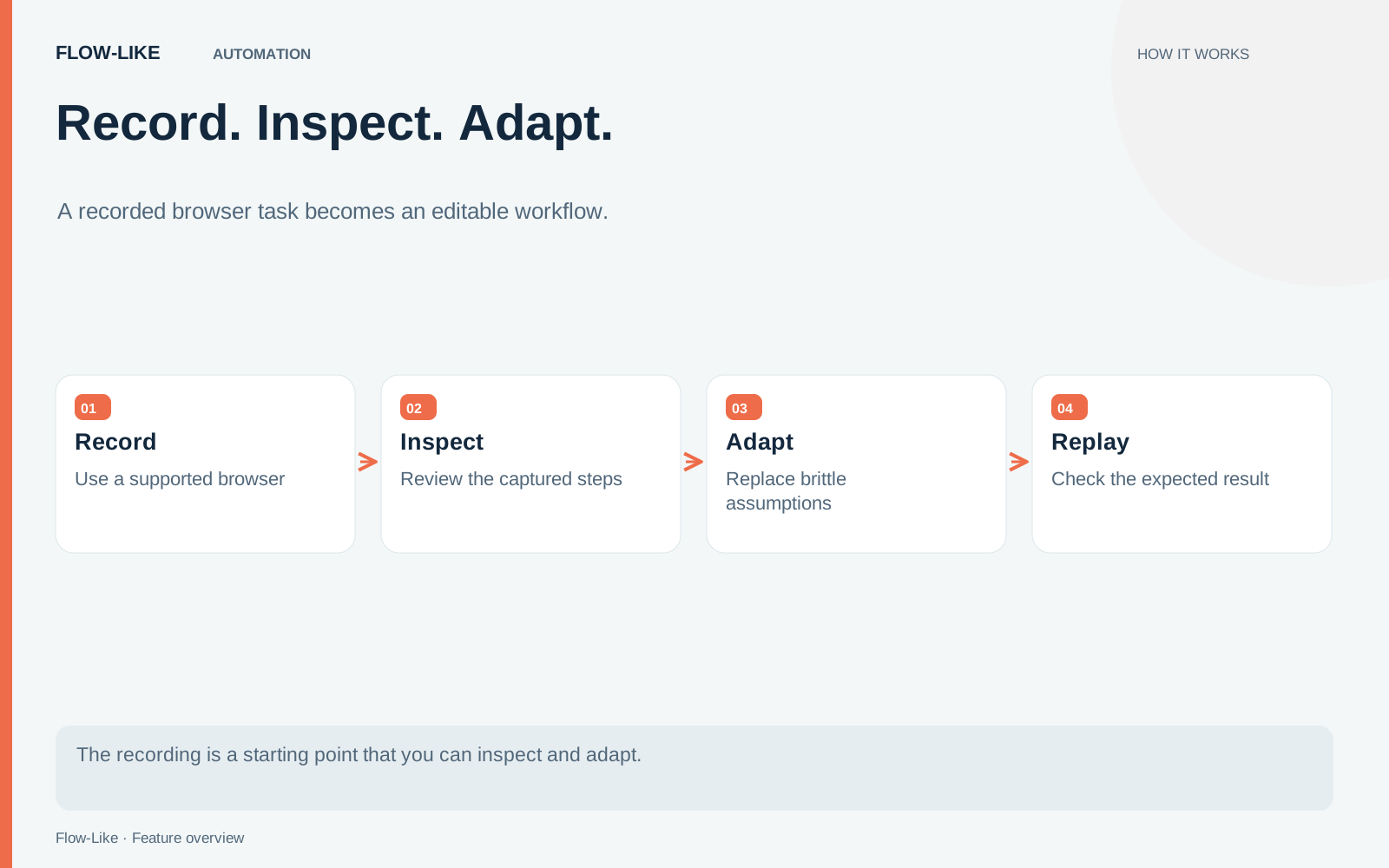
Browser recording can capture that interaction and turn it into workflow nodes. The resulting workflow is a starting point you can inspect and change. The interesting part comes after the recording, when you replace the one-off values and make the expected result explicit.
Use a test form for an equipment request. It should accept synthetic data and display a confirmation without placing an order or creating a real external obligation. Prepare two records with different names and equipment choices.
Capture one complete example
Open the recorder and choose a supported Chrome or Edge session. Use a separate browser session for the equipment form so the recording stays focused on the task. Browser recording needs access through the browser’s debugging connection; merely having a window open does not grant that access. The automation guide covers session setup.
Start from a known page, record the first request, and continue until its confirmation is visible. Stop recording and inspect the captured steps before inserting or relying on them.
The recording generator translates browser actions into nodes and adds context steps such as selecting a tab, entering a frame, and waiting for a target element. Those steps make the generated sequence more useful than a bare list of clicks.
Check that the recording actually followed the intended tab and frame. A recorder cannot remove the restrictions imposed by cross-origin content or every shadow-DOM structure. If a target is missing or represented poorly, identify that gap before attempting replay.
Make the sequence reusable
Look first at the values typed into the form. Replace the first record’s fixed name, reference, and equipment choice with workflow inputs. Keep the mappings visible enough that another person can tell which input reaches which form field.
Then inspect target selection. A selector tied to a meaningful field or label is usually easier to maintain than a position that happens to work in the recorded window. If the page contains several matching controls, narrow the target rather than depending on incidental order.
Password fields need a separate treatment. Generated password steps call for a Secret input. Connect credentials through the appropriate secret path instead of preserving a test password as an ordinary workflow constant. Review captured material before sharing the recording or its logs.
Add a result check after submission. For the test form, the check might confirm that the displayed request reference matches the input. Seeing a button click succeed is insufficient; the workflow needs evidence that the page reached the expected state.
Give failure a destination as well. If the target is absent or confirmation never appears, capture enough state to inspect the problem and stop before repeating a potentially consequential action.
Replay a different record
Run the edited workflow with the second synthetic request. Keep the browser state controlled so a previous success does not accidentally satisfy the new result check.
Inspect the values on the form and the returned confirmation. Then make the test slightly harder: delay the page response or change an optional field. The purpose is to see whether the workflow’s assumptions are visible, not to prove that every future site redesign will be handled automatically.
A failed replay can teach you where to strengthen the flow. The target may need a better selector, the wait may need an explicit condition, or the result check may need to distinguish a new request from an old one.
Close or disconnect the automation session on the relevant completion and failure paths. Resource ownership matters when a workflow is run repeatedly.
Recording removes some of the initial transcription work. The finished automation still earns its usefulness through parameterized inputs, clear targets, and a checked outcome. Keep the second test record with the workflow so later changes can be checked against an input the original recording never used.
Get automation insights delivered
Sign up for our newsletter to receive the latest updates on Flow-Like, automation best practices, and industry insights. No spam — just valuable content.