

A machine’s temperature is climbing. The latest reading is still within its operating range. What you need to know is whether that will remain true over the next hour, and what to do if the outlook changes.
Flow-Like now brings pretrained time-series models into that decision. Timestral, Chronos-2, Toto 2, TimesFM 2.5 and IBM Granite TinyTimeMixer can forecast from your existing measurements. Inspect the prediction in Data Studio, test it against an earlier period, and use the same model families in a workflow.
You can start without training a model for the task. Native inference runs in Rust on the desktop or a server built with forecasting support. The forecasting nodes run on CPU and need no Python installation.
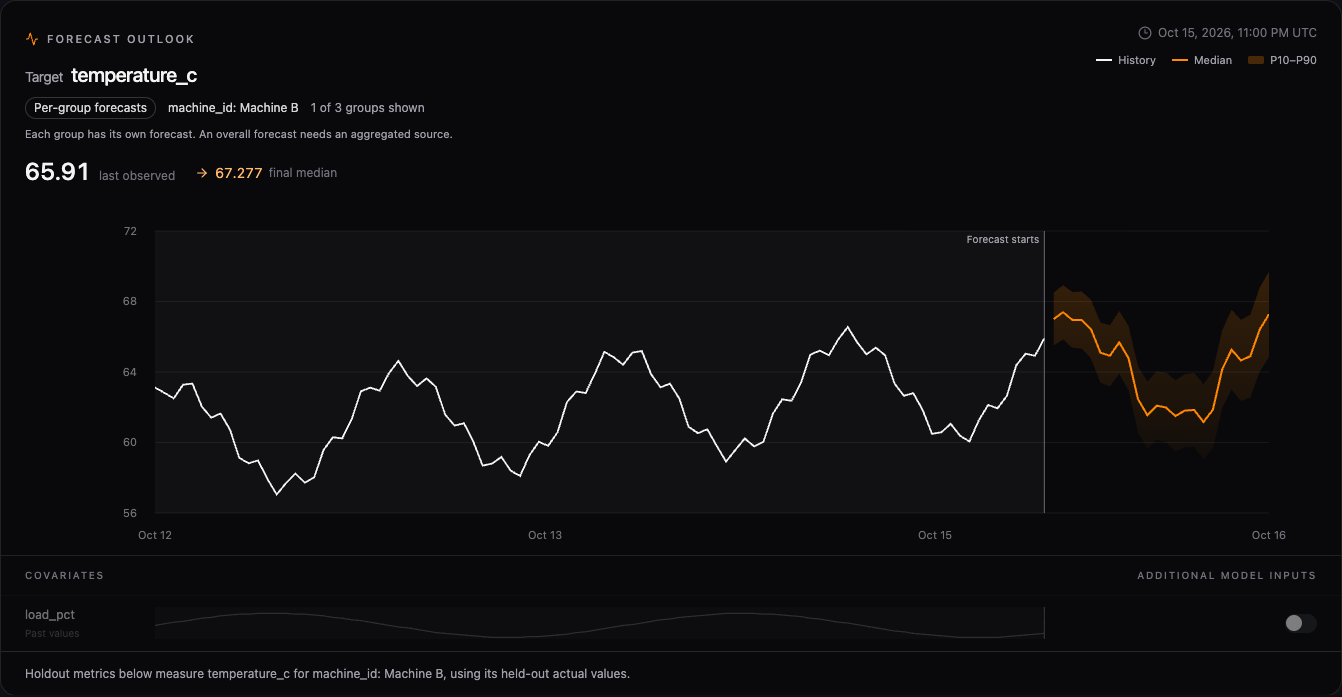
Start with the table you already have
To make a model available, activate a Forecasting Bit in your profile. This model package identifies the family and the checkpoint files the runtime loads. The forecasting guide covers the supported checkpoints and their requirements.
Data Studio’s Forecast tab opens with a guided setup. Select a table in your project or personal data, map the timestamp and values to predict, then choose a model and how many steps ahead to look. Review the choices and run.
If the evidence lives across tables, switch to SQL. Join machine readings with metadata, aggregate transactions into hourly totals, or select a historical period. These queries read the source data without changing it.
An hourly forecast needs evenly spaced hourly timestamps. Duplicate timestamps and irregular intervals produce an error, so align or aggregate the observations first. A horizon of 24 means 24 more steps at that interval.
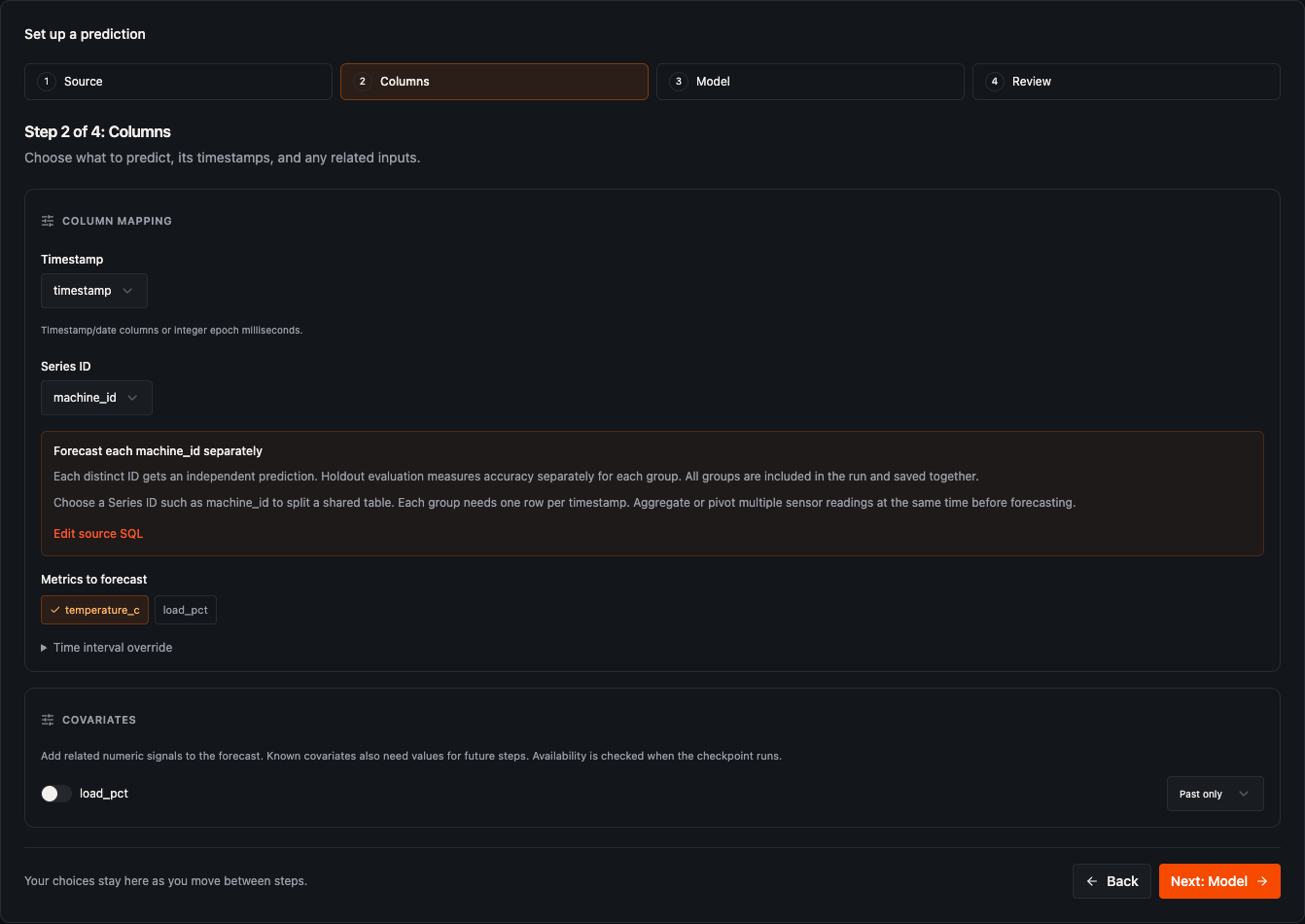
One table, many machines
Set Series ID to machine_id, and each machine in a table gets its own forecast in one run. The chart shows the selected machine and target; saving retains all the groups.
Each machine is a separate series. To predict the factory’s total power consumption, aggregate power by timestamp first. Adding individual machines’ uncertainty bands would not give you a valid band for the factory.
Some models also use covariates, additional numeric inputs describing the conditions around a measurement. A production schedule can be known ahead of time; sensor readings may only be available in the past. Data Studio distinguishes those roles and shows their tracks alongside the forecast. Known future inputs need aligned values for every forecast step.
TimesFM 2.5 and the supported TinyTimeMixer checkpoints take one target per series and no covariates. Other families support joint targets or additional inputs according to the checkpoint. Forecast Model Info exposes these capabilities in a workflow, including supported history and horizon.
The output differs too. Models with quantiles show an orange forecast line and a shaded band. Quantiles describe the model’s predicted distribution at each future step. The supported TinyTimeMixer checkpoints return a mean point forecast, so the chart labels it Point forecast only and leaves out the band.
Give the model a past it has not seen
A convincing line is a poor reason to trust a forecast. Data Studio lets you ask a more useful question: how would this setup have performed on observations you already have?
Enable Evaluate on held-out data, choose a window, and run. The model predicts that window using earlier target values. Data Studio overlays the prediction with what happened and reports the error for the selected machine, target and period.
Move the Forecast as of slider to an earlier cutoff. Releasing it runs a new evaluation, letting you examine a change in load or a difficult patch in the history.
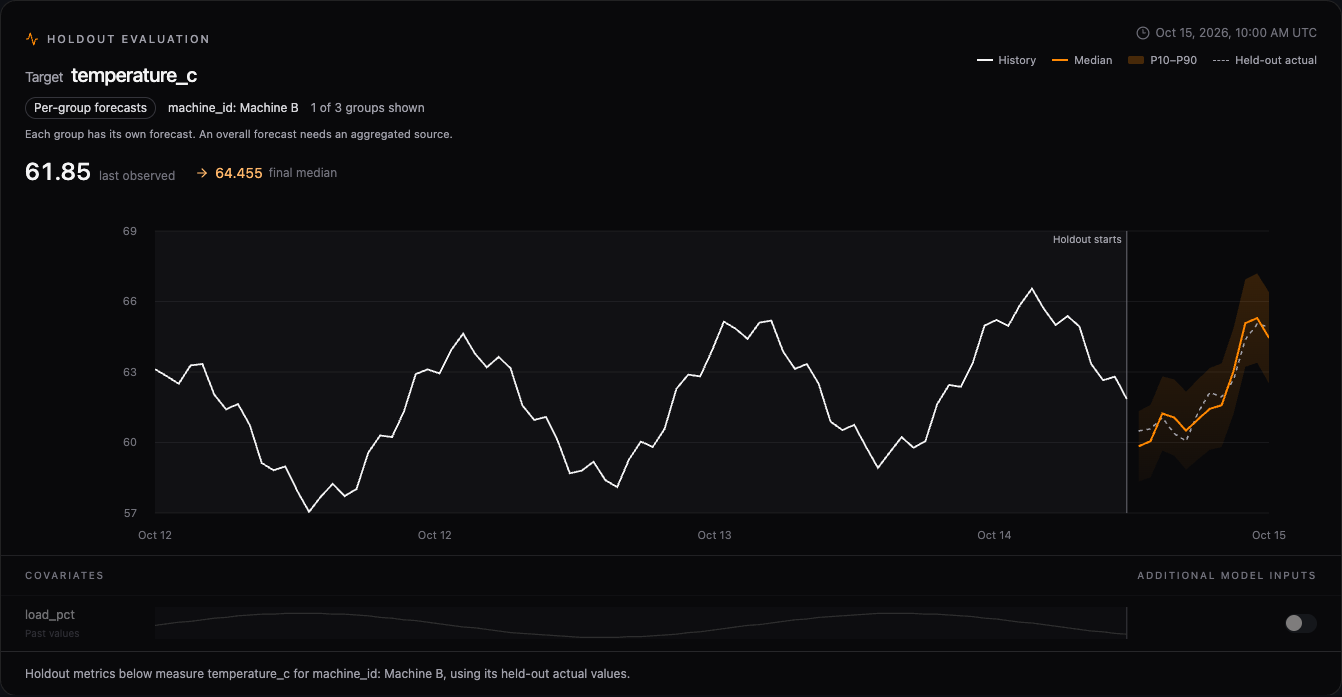
MAE (mean absolute error) reports the average miss in the target’s units. RMSE (root mean squared error) gives large misses more weight. The panel also reports percentage errors where they can be calculated. These measurements describe the chosen historical window; they do not promise the same accuracy tomorrow.
Inputs marked as known in advance remain available during evaluation. That is useful for a real production schedule, and a reason to be deliberate about what you mark as known.
Put the prediction to work
Find these nodes on the workflow canvas under AI/ML/Forecasting:
| Node | Use it to |
|---|---|
| Load Forecasting Bit | Load a model and its checkpoint assets from a Forecasting Bit. |
| Load Hugging Face Forecast Model | Load a supported public checkpoint, resolving the requested revision to a fixed commit. |
| Load Forecast Model | Load a supported checkpoint from files in your storage. |
| Forecast | Read regularly spaced series from a table and write future values to a separate forecast table. |
| Forecast Values | Predict from arrays already prepared by your workflow. |
| Forecast Model Info | Inspect the loaded checkpoint’s history, horizon, quantile and covariate capabilities. |
Connect Load Forecasting Bit to Forecast, supply the source table, and map its columns. The output contains each series, target, future timestamp and point prediction, plus quantile columns when available. Model and run information identifies the prediction for downstream steps.
Use that output to compare predicted demand with available capacity, or route a projected temperature excursion for review. The action and its approval rules remain explicit parts of your flow.
The node examples show the table mapping and output schema. Use Forecast Values when you already have ordered arrays.
Keep the result, share the context
Choose Save prediction to keep a completed run with its query, mappings, model reference and settings, including any historical evaluation. Reopen it without running the model again or having its checkpoint installed.
Share project predictions with people who have access to the source data. Personal predictions stay personal. Add a Saved forecast widget to your home page, or a Saved Forecast component to an app page. These displays read the saved run; select a newer saved prediction to update them.
Or start with Ask FlowPilot. Describe the metric, interval and horizon. The Data Studio assistant can inspect tables, prepare a query, discover active models and run a forecast with historical evaluation. Saving follows your existing approval settings and permissions.
Start with one series and a decision you already make. Open the Data Studio forecasting guide, test the setup against a period you understand, and connect the result to the next step in your workflow.
Get automation insights delivered
Sign up for our newsletter to receive the latest updates on Flow-Like, automation best practices, and industry insights. No spam — just valuable content.