
Opening an app from a Shortcut is useful. Receiving an answer that the next action can use makes a longer task possible. Flow-Like’s native actions on iOS and macOS can return chat text or a structured Event result, so a Shortcut can continue with that output.
A practical first example is to ask an app chat a question and place the reply in a note. It keeps the handoff visible: Shortcuts supplies the question, Flow-Like answers, and the next action receives the returned text.
Start with an entry point you can already use
In Flow-Like, open the Event’s Identity settings and enable Native integrations. Select the relevant system surfaces, then save and activate the Event. Native actions use existing app entry points, and access and saved Event settings are checked again when an action runs.
Use Ask App Chat for a selected Chat Event, or Ask FlowPilot for a FlowPilot question. Both return the final answer as Text. In Shortcuts, follow the ask action with Create Note and choose its output as the note content. Use a question whose answer is suitable for a note and does not need another decision before it can be used.
These actions bring Flow-Like to the foreground and wait for execution. After the answer returns, Create Note receives it as text. A question that needs more interaction can continue inside Flow-Like, so the same entry point remains useful even when the task grows beyond a single response.
Return a field instead of a paragraph
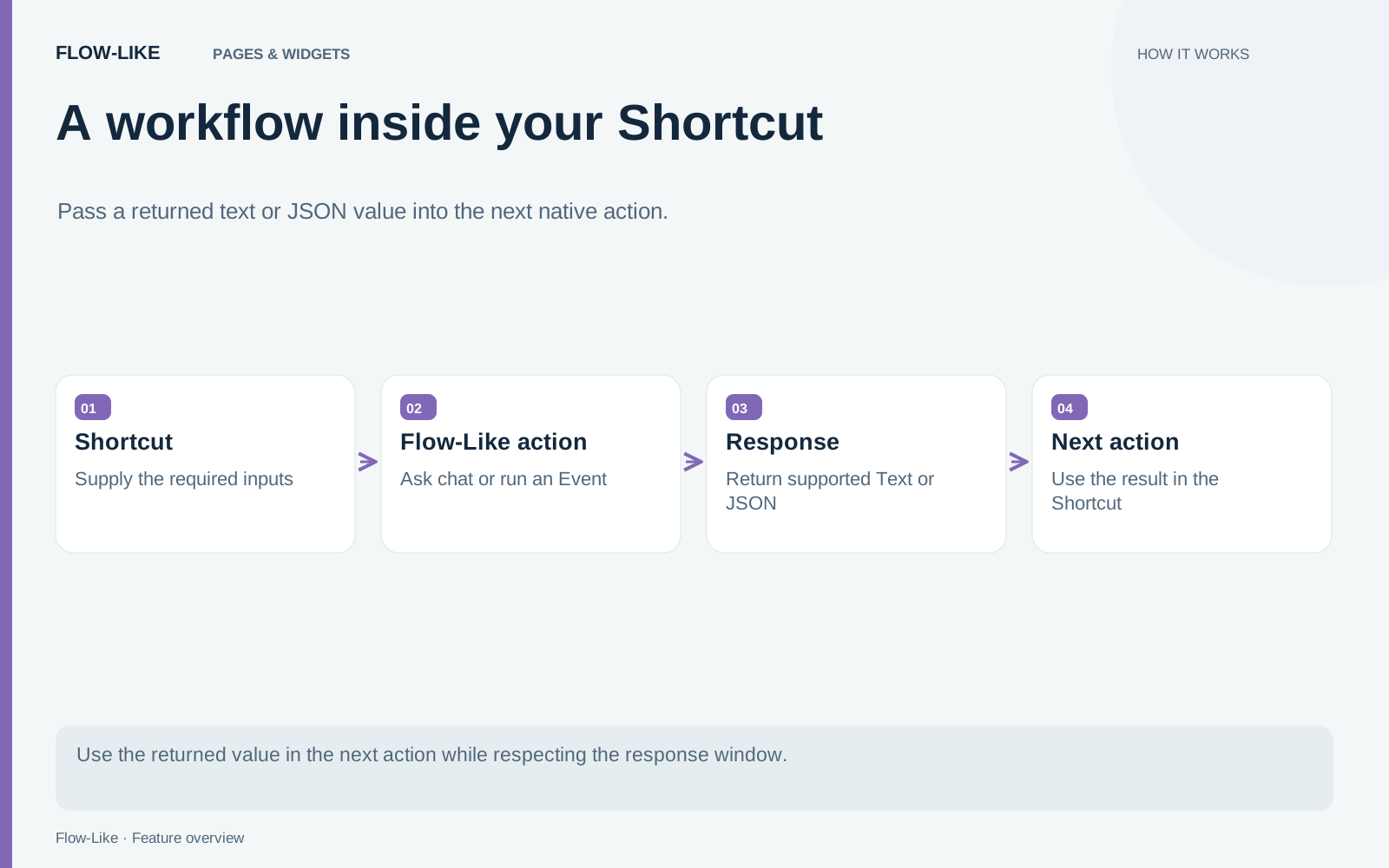
For an Event that produces structured information, use Run Event. Its Event Result has Text and JSON properties. A flow’s Return Generic Result node supplies JSON, preserving values such as objects, arrays, numbers, and booleans. A string result also populates Text. Intermediate reasoning and execution logs are excluded from the returned result.
Imagine a flow that prepares a task summary with a title and a nextAction field. Select the result’s JSON property in Shortcuts, pass it through Get Dictionary from Input, and read the field needed by the next action. This keeps the flow’s output contract separate from how a particular Shortcut presents it.
Keep those field names stable as you extend the Shortcut. A renamed field changes what the next action receives even when the Event still executes successfully. Add a Shortcuts condition before Create Note if an empty result needs a different response, such as showing a message and leaving the existing note alone.
Supply inputs explicitly
The Shortcuts Input accepts a JSON object keyed by the Event’s input names. Those values override configured defaults. When the Event has one String input, plain text also works. Unknown fields or values with the wrong type stop the run.
Required inputs belong in the Shortcut if you want the chain to proceed without asking for them inside Flow-Like. Missing inputs and page-only Events report that interaction is needed. A native entry point does not turn every page into an unattended background operation.
The native integration guide lists the supported actions, result types, input rules, and platform behavior. Consult it when choosing between a chat question, an executable Event, and a launcher that opens an interface.
Keep the wait and result size in mind
The documented response wait ends after 90 seconds, and the operating system can cancel it earlier. A run that has already started may continue in Flow-Like. If the Shortcut stops waiting, inspect the app before retrying an operation that changes data.
Returned results are also bounded: Text and JSON each have a limit, with a combined limit for the response. Oversized results report an error instead of silently truncating the content. Return the useful summary or selected fields, rather than treating the Shortcut response as a bulk export channel.
The same handoff works beyond Notes. A Shortcut can show a returned summary for review, read one field for a later decision, or pass selected text to another native action. Keep a review step before sharing sensitive content. Flow-Like handles the workflow’s part of the task, and Shortcuts decides how its result fits into the rest of your day.
Get automation insights delivered
Sign up for our newsletter to receive the latest updates on Flow-Like, automation best practices, and industry insights. No spam — just valuable content.